

Assetto Corsa is a racing simulator on PC, and its mods add extra cars, tracks, and skins made by fans. In the original Steam version, the easiest way to install them is to get Content Manager, a free launcher, then drag the mod's archive onto its window and click Install. You can also copy the files into the game folders by hand, as long as each one lands in the right place.
| Mod type | Folder inside the game root | Example path |
|---|---|---|
| Car | content\cars\ | content\cars\car_folder\ |
| Track | content\tracks\ | content\tracks\track_folder\ |
| Car skin | Inside the car's own folder | content\cars\car_folder\skins\skin_folder\ |
Every path starts from the game's root folder, which for a Steam install is usually steamapps\common\assettocorsa. Content Manager can place mods for you, but knowing these paths makes it much easier to fix a mod that goes missing.
Set Up Content Manager Lite and Confirm Your Game Folder
Start by installing Assetto Corsa from Steam and running it at least once, so all of its folders are in place. Next, download Content Manager Lite from the Content Manager page. Lite is the free version, and it's all you need to install cars, tracks, and CSP. The Full version adds access to new features, work-in-progress sections, and pre-release builds.
When you open Content Manager for the first time, it should detect your Assetto Corsa install on its own. Check that it points to the right root folder, usually steamapps\common\assettocorsa. From then on, launch the game through Content Manager, since that's where your mods and CSP are managed.
Where to Find Assetto Corsa Car and Track Mods Safely
You'll find car and track mods on dedicated download sites and on the mod's own download page. RaceDepartment and OverTake.gg both host Assetto Corsa downloads, and the OverTake.gg downloads catalog is an easy place to start. Whichever site you use, stick to the mod's own page or a catalog you trust.
Be careful with anything that looks off. Paid cars offered for free are illegal, and they can be used to spread malware, so skip them along with pirated paid mods and files from unknown sources.
Before you download, read the mod's requirements. Some mods need Custom Shaders Patch, sometimes a specific version. Others reuse car or track assets from paid official DLC, and that content needs to be installed for the mod to work.
Install Custom Shaders Patch (CSP) for Mods That Need It
Custom Shaders Patch, usually called CSP, is an extension for Assetto Corsa. It adds features such as dynamic lights, Weather FX, extra effects, particles, and extra car features. Some cars and tracks are built around it, and without it they can look wrong or fail to load.
You don't need CSP for every car or track, but setting it up before your first mod is good preparation. That way, you won't have to stop and fix things when a mod calls for it. CSP needs the 64-bit build of Assetto Corsa, so make sure that's the version you're running.
To install it through Content Manager:
- Open Content Manager and go to Settings.
- Select Custom Shaders Patch.
- Click Install and wait for Content Manager to finish.
Content Manager downloads and applies CSP for you, so there's no need to copy files by hand. Use the recommended stable build unless a mod's requirements name a specific version, and follow that version if they do. CSP builds are labeled by status, and a newer build may be marked as untested, so the recommended one is the safer starting point.
How to Install a Car or Track Mod With Content Manager
This is the quick method, and it's the one to try first. Content Manager reads the archive, checks what's inside, and places the files where they belong, so you don't have to dig through folders.
- Drag the mod's
.zip,.rar, or.7zfile onto the Content Manager window. - Check what Content Manager detects, such as a car, track, or skin.
- Click Install.
- Find the mod under Cars or Tracks, then launch a quick race to test it.
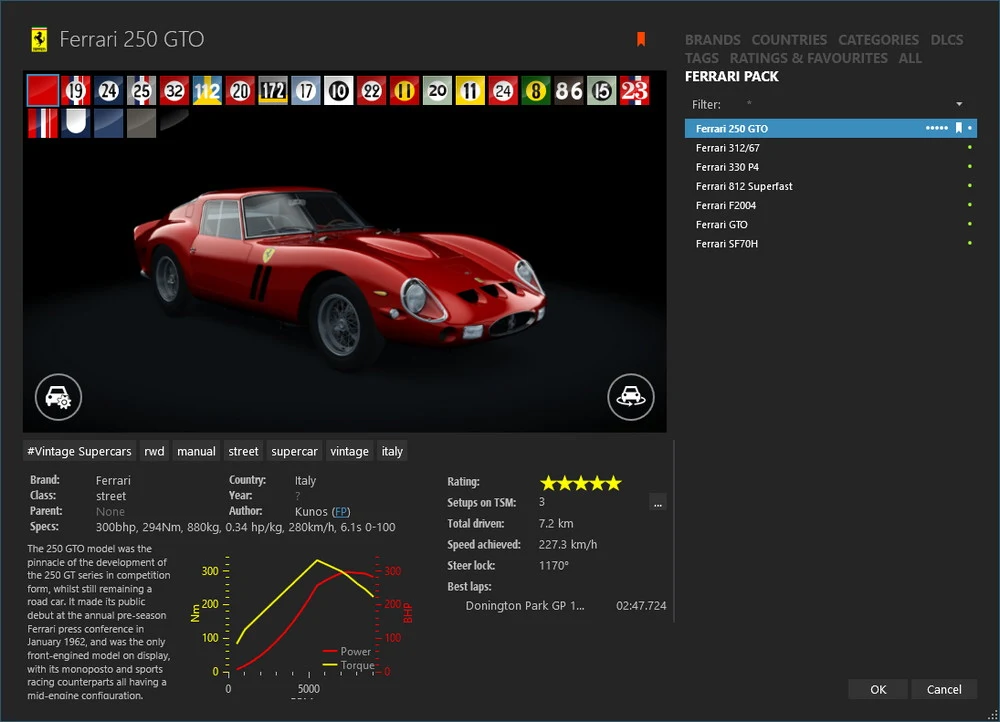
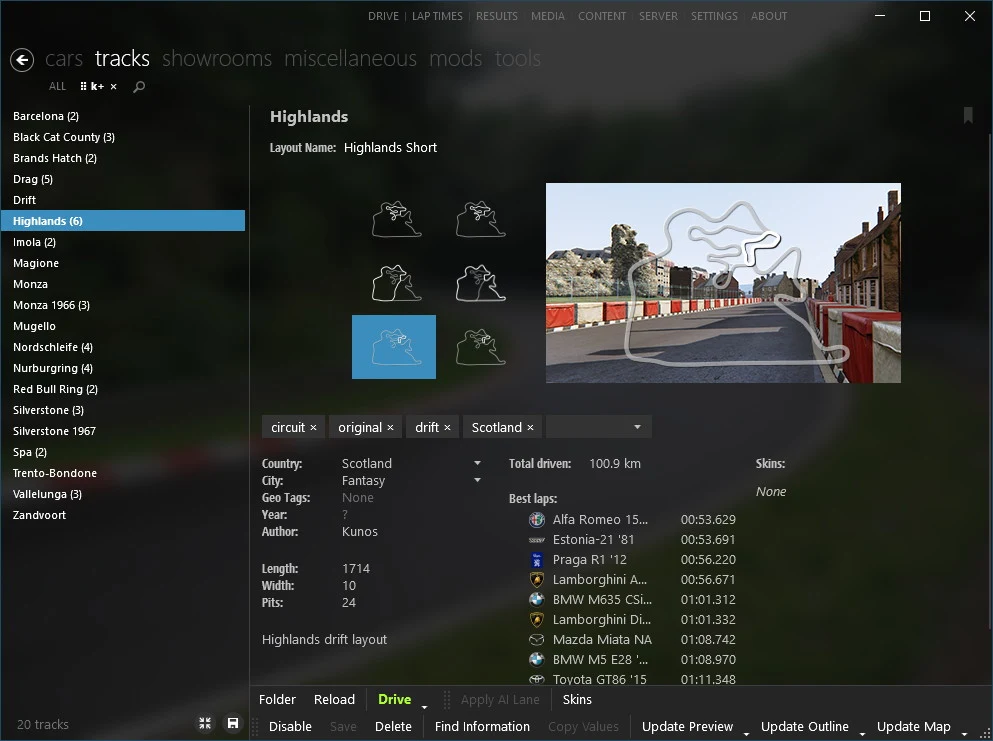
If the mod doesn't appear, the textures look wrong, or a track won't load, the archive may not have been packed in a way Content Manager handles well. Try the manual method instead.
How to Install Car and Track Mods Manually
A manual install takes more care, but it gives you control over where every file goes. It's also the fix when Content Manager puts something in the wrong place. The main thing to get right is folder depth.
- Open the game's root folder, usually
steamapps\common\assettocorsa. - Unpack the mod's archive and look at how it's organized.
- If the archive already contains a full path, such as
content\cars\...orcontent\tracks\..., copy those folders into the game root and merge them. - If the archive only contains the mod's own folder, copy that folder into
content\cars\orcontent\tracks\. - Keep each mod in its own folder, and don't mix files from different mods.
The most common mistake is adding an extra folder level. A path like content\cars\mod\car_name won't work, because the game looks for each car folder directly inside content\cars\. Open a car folder and check that it holds files such as data.acd or a data folder, along with .kn5 files. If those files are one folder deeper, move the car folder up one level.
When everything is in place, restart Content Manager so it can scan for the new content.
What to Do When a Mod Does Not Show Up or Fails to Load
Most problems come down to a few common causes, so work through these in order.
- Folder depth: Re-check the structure against the manual steps. An extra folder level is the most common cause.
- Restart: Content Manager picks up new content when it starts, so restart it after every install.
- Requirements: If a mod still fails, check its listed CSP version and any official DLC it depends on.
- Manual reinstall: If Content Manager seems to have unpacked a mod into the wrong directory, remove the misplaced files and install it by hand.
- CSP not loading: Reinstall CSP through Content Manager instead of copying files yourself. A hand-copied install can miss a setup entry that Content Manager needs.
- Missing textures or strange lighting: Missing textures can mean the archive was packed poorly, so try the manual method. Strange lighting often points to a CSP version that doesn't match the mod.
- Online servers: Online play requires the same content as the server. If something is missing, Content Manager shows a Missing content warning.