

You can install mods in Euro Truck Simulator 2 in one of two ways: subscribe to a mod on Steam Workshop, or copy a ready-to-use .scs or .zip package into the game's mod folder. Either way, a mod does nothing until you switch it on for a profile in the in-game Mod Manager. Euro Truck Simulator 2 is a driving game where you haul cargo across Europe, and mods are player-made extras like new trucks, maps, sounds, and tuning parts.
| Platform | Mod folder location |
|---|---|
| Windows | Documents\Euro Truck Simulator 2\mod |
| Windows, with Documents backed up by OneDrive | OneDrive\Documents\Euro Truck Simulator 2\mod |
| Linux | ~/.local/share/Euro Truck Simulator 2/mod |
| macOS | ~/Library/Application Support/Euro Truck Simulator 2/mod |
Manual mods go in the mod folder. If you don't see one, create a folder named mod in lowercase. Linux and macOS use the same mod files as Windows, so only the folder location changes. Keep mod files out of the game's install folder, the one with the .exe and base.scs, because the game only reads mods from the mod folder listed above. Steam Workshop mods are the exception, since Steam places them for you.
Steam Workshop or a Manual Download: Which Should You Use?
If you own the game on Steam, Workshop is the easier route. Steam downloads the mod in the background and keeps it updated when the author releases a new version. If the mod you want is on the Workshop, that's the place to start.
Manual downloads are for mods that come from an author's own website or a forum post. They usually arrive as .scs or .zip packages, sometimes wrapped inside another archive. Steam won't update these for you, so you'll need to check the author's page when a new version comes out.
How to Install a Euro Truck Simulator 2 Mod from Steam Workshop
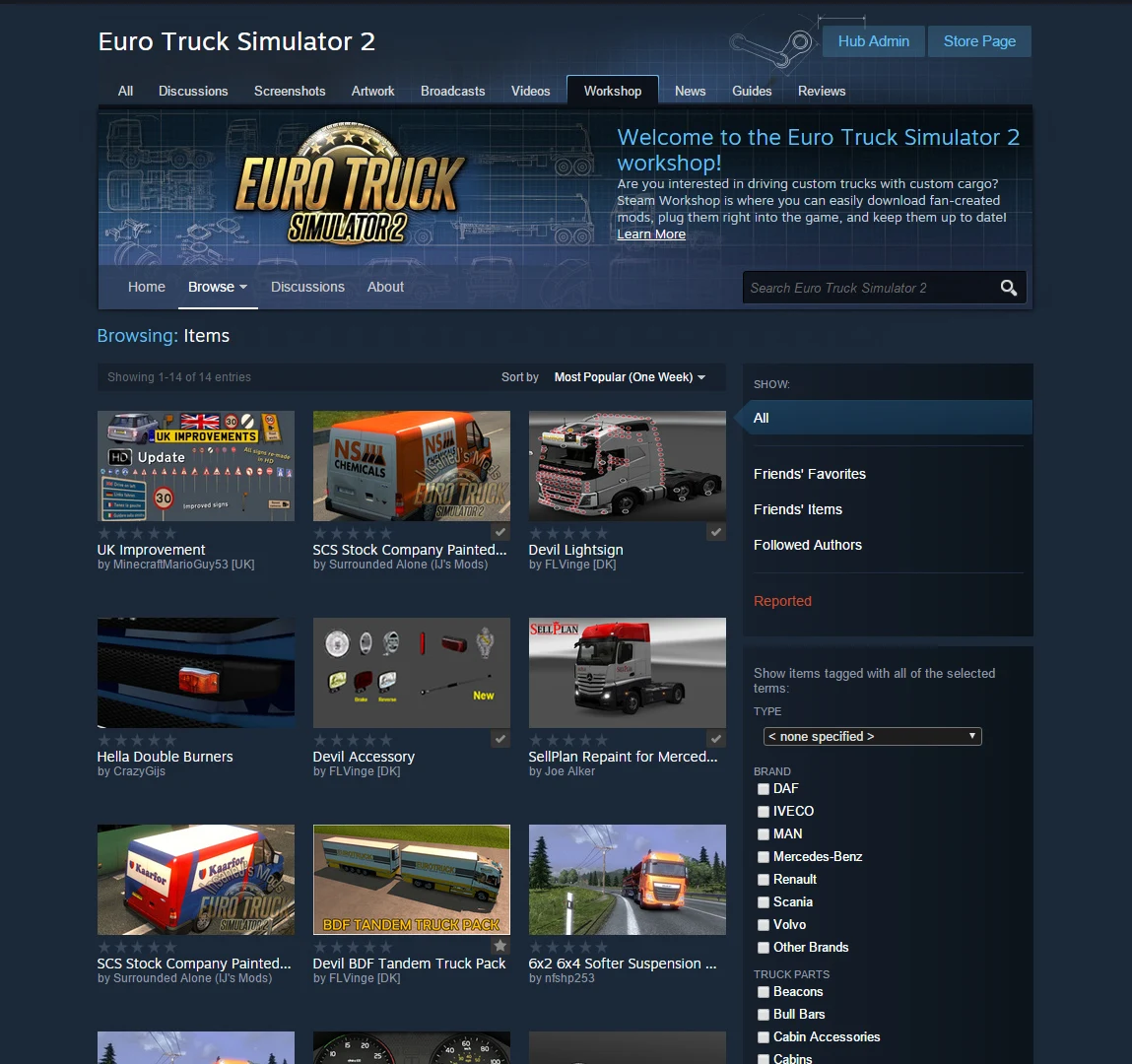
- Open the mod's Euro Truck Simulator 2 Workshop page in the Steam app, or in a browser where you're signed in to Steam.
- Click Subscribe. Steam downloads the mod in the background.
- Start the game and switch the mod on in the Mod Manager.
Subscribing only gets the mod onto your computer. It doesn't change anything in the game until you activate it for a profile, so the last step matters as much as the first two.
How to Install a Downloaded Mod Manually
Manual installs take a few extra checks, mostly because downloads come in different forms.
- Download the mod from the author's official page and read the installation instructions. If their steps differ from the general ones here, follow the author.
- Check what you downloaded. A ready-to-use
.scsor.zippackage stays as it is. If the download is a.raror.7zfile, or a.zipholding several separate mod packages, extract it the way the author describes. - Copy the
.scsor.zipfiles into yourmodfolder, using the location from the table above. - Start the game and switch the mod on in the Mod Manager.
The game reads .scs and .zip packages the same way, so a package you're told to keep zipped can stay that way. Only extract a zip when it holds separate mod files that you need to place yourself. When you're not sure which files to keep, the author's instructions are the best answer.
Stick to the author's own website, the SCS forum, or Steam Workshop for downloads, and avoid:
- Sites full of link shorteners, countdown timers, or several "Download" buttons. These are often re-uploads, sometimes of old versions.
- Any
.exethat calls itself a mod or "mod installer," unless it comes from a well-known author's official site.
How to Turn On Mods in the Euro Truck Simulator 2 Mod Manager
Mods are switched on per profile. A mod that's active in one profile can be off in another, so you can keep a modded profile and a clean one side by side.
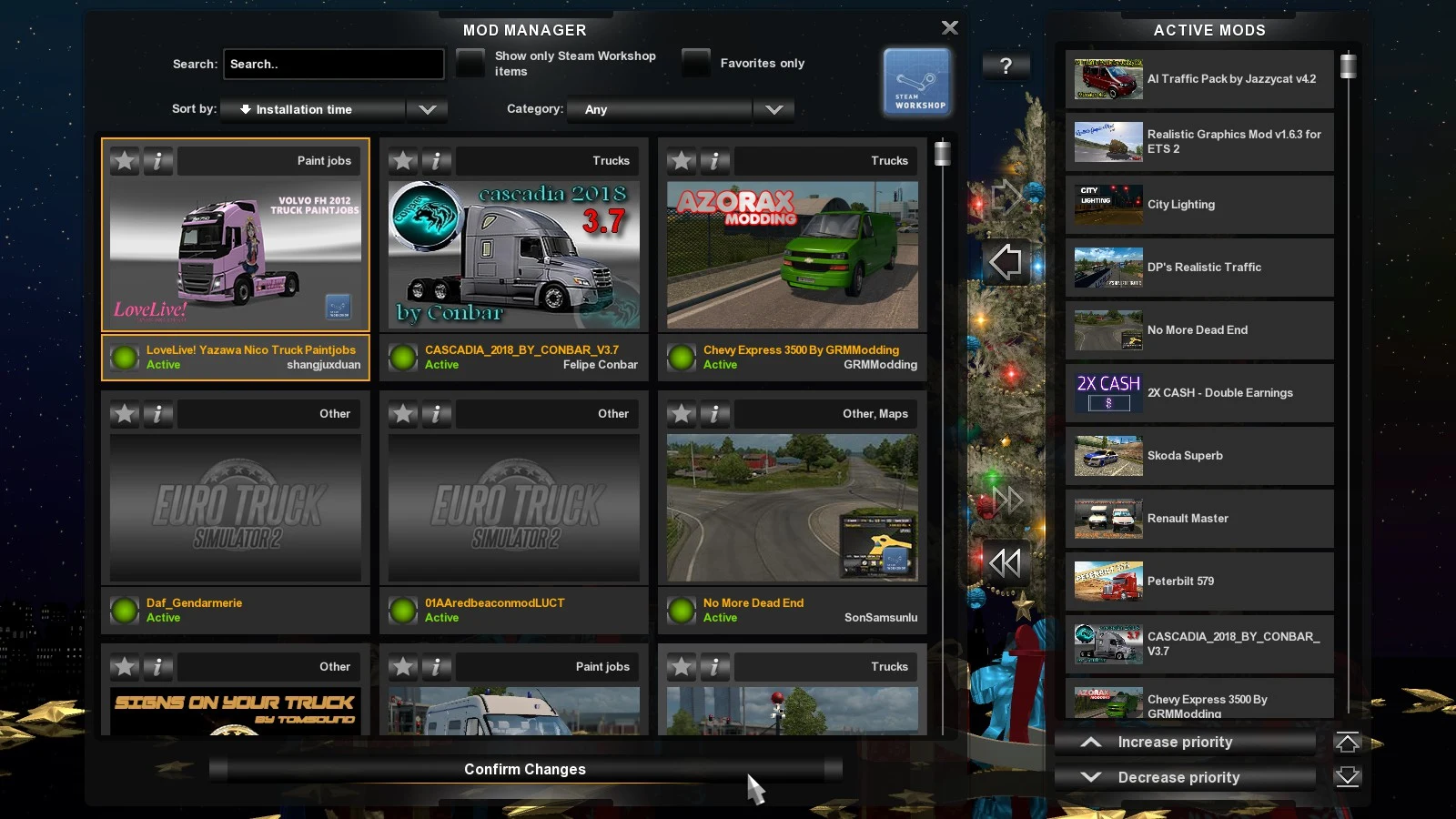
- Start the game. On the profile selection screen, open the Mod Manager.
- Your installed mods appear in the list on the left. Double-click a mod, or use its arrow, to move it to Active mods on the right.
- Press Confirm changes, then load your profile.
If a mod doesn't show up in the list, its package may still be wrapped inside an archive. Go back to the author's instructions and extract the separate mod packages from it. A warning icon usually means the mod was made for an older version of the game. It may still work, but check the author's page for an update before you rely on it.
How Load Order Decides Which Mod Wins
The active list is also a priority list. When two active mods change the same thing, the one higher in the list takes priority. Moving a mod up or down is how you decide which change the game uses.
No single order works for every setup. Follow the author's instructions first, especially for map mods and compatibility patches. Map combinations are very sensitive to order, and a mod in the wrong spot can override a change you wanted.
Check the order again every time you add or remove a mod. A new mod placed above an older one can take over a change you were relying on.
Check Mod Compatibility and Back Up Before Game Updates
Before you turn on a mod, check that it supports your installed version of Euro Truck Simulator 2 and any DLC it needs. Some mods list the game versions they were built for. If your version isn't on that list, the Mod Manager won't let you use the mod until the author updates it. A mod that requires a DLC also won't activate if you don't own that DLC.
Game updates often break mods, especially trucks, maps, and physics mods, until their authors release new versions. Before an update or a big mod change, back up your profile:
- Close the game.
- Copy the
profilesfolder fromDocuments\Euro Truck Simulator 2to a safe place. If you use Steam Cloud, copy thesteam_profilesfolder instead.
On Steam, you can usually step back to an older version of the game while your mods catch up. Right-click the game, choose Properties, open the Betas tab, and pick the older version.
Using Mods with TruckersMP Multiplayer
TruckersMP is a separate multiplayer modification with its own rules and supported content. A regular single-player mod isn't guaranteed to work there, so check TruckersMP's rules and compatibility information for each mod before you use it online. Keeping a separate single-player profile for modding is the simplest way to avoid mixing the two.
The game also has an optional-mod setting for multiplayer sessions. A mod marked as optional can be used in a session where other players don't have it, but only if the server allows optional mods and you've allowed those servers in your session filter. That setting covers the game's own multiplayer sessions, so it doesn't confirm that TruckersMP accepts a particular mod.
How to Remove a Mod Safely Without Losing Save Content
Removing a mod is quick, but a save can depend on it. If a mod added a truck you bought or a map feature, that content can disappear or become unavailable. The game warns about missing mods the next time you load that profile, and anything that came from the removed mod is taken out.
Before you remove anything:
- If the mod supplied a truck, sell it or switch to another truck first.
- Check the profile for mod-provided trucks, map features, or other content.
- Back up the profile before changing a large or map mod setup.
For a Steam Workshop mod:
- Turn the mod off in every profile that uses it.
- Open its Workshop page and click Unsubscribe. Steam removes the download.
For a manual mod:
- Turn the mod off in every profile that uses it.
- Exit the game.
- Delete its
.scsor.zipfile from themodfolder.