
To install mods in Cities: Skylines 2, open Paradox Mods from the main menu or the Paradox Mods website, add the mods you want to a playset, and activate that playset. Mods are add-ons made by players that change or extend how the game works. Unlike the original Cities: Skylines, this game doesn't use Steam Workshop for mods, so Paradox Mods is the route to use.
| Platform | Status | Mod support |
|---|---|---|
| PC | Released | Paradox Mods, code and asset mods |
| PlayStation 5 | Not released yet | Asset Mods planned |
| Xbox Series X/S | Not released yet | Asset Mods planned |
If you play on PC, Paradox Mods is all you need to get started. The console versions aren't out yet and don't have a confirmed release date, so there's nothing to install on PlayStation 5 or Xbox Series X/S for now. The planned console support centers on Asset Mods.
Update Cities: Skylines 2 and Sign In to Paradox
Start by making sure the base game is up to date. Many mods change parts of the game's own code, so an update can leave a mod out of step with the game. Updating first gives your mods the best chance of running the way their makers intended.
Next, launch the game and sign in with the Paradox account you use for Paradox Mods. That account holds your mod subscriptions, and it's the same one you'll use if you manage mods on the Paradox Mods website.
How to Find Mods in Paradox Mods
From the main menu, open Paradox Mods. You can search for a mod by name or browse the full library. The platform also highlights standout mods, which makes it a good place to start if you're not sure what you want yet.
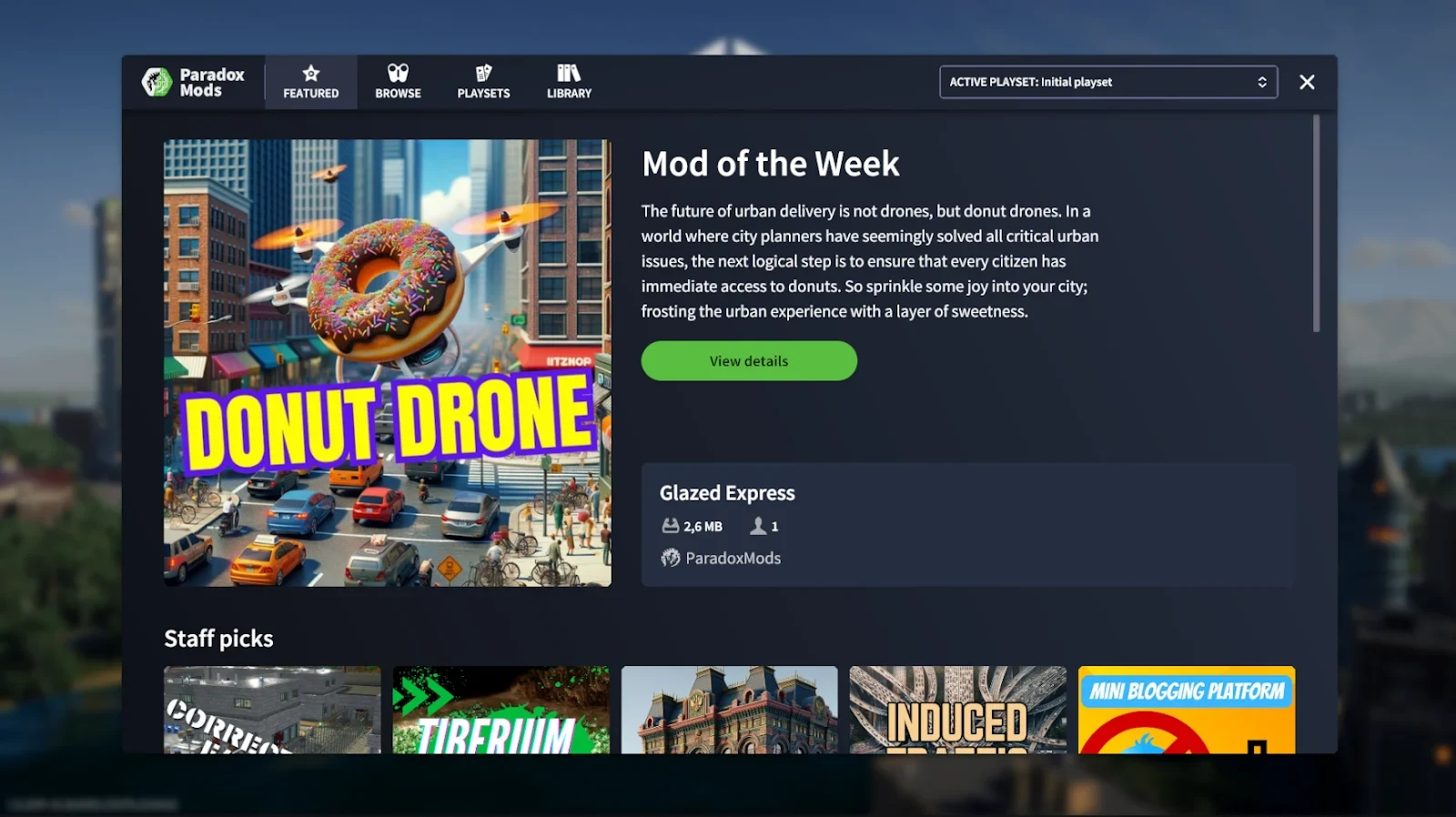
Before you add a mod, open its page and read it. Each page lists a description, screenshots, release notes, the game version the mod supports, and any dependencies, which are other mods it needs to run. Check the supported version against your game, because a mod built for an older version may not work until its maker updates it.
How to Add Mods to a Playset and Turn It On
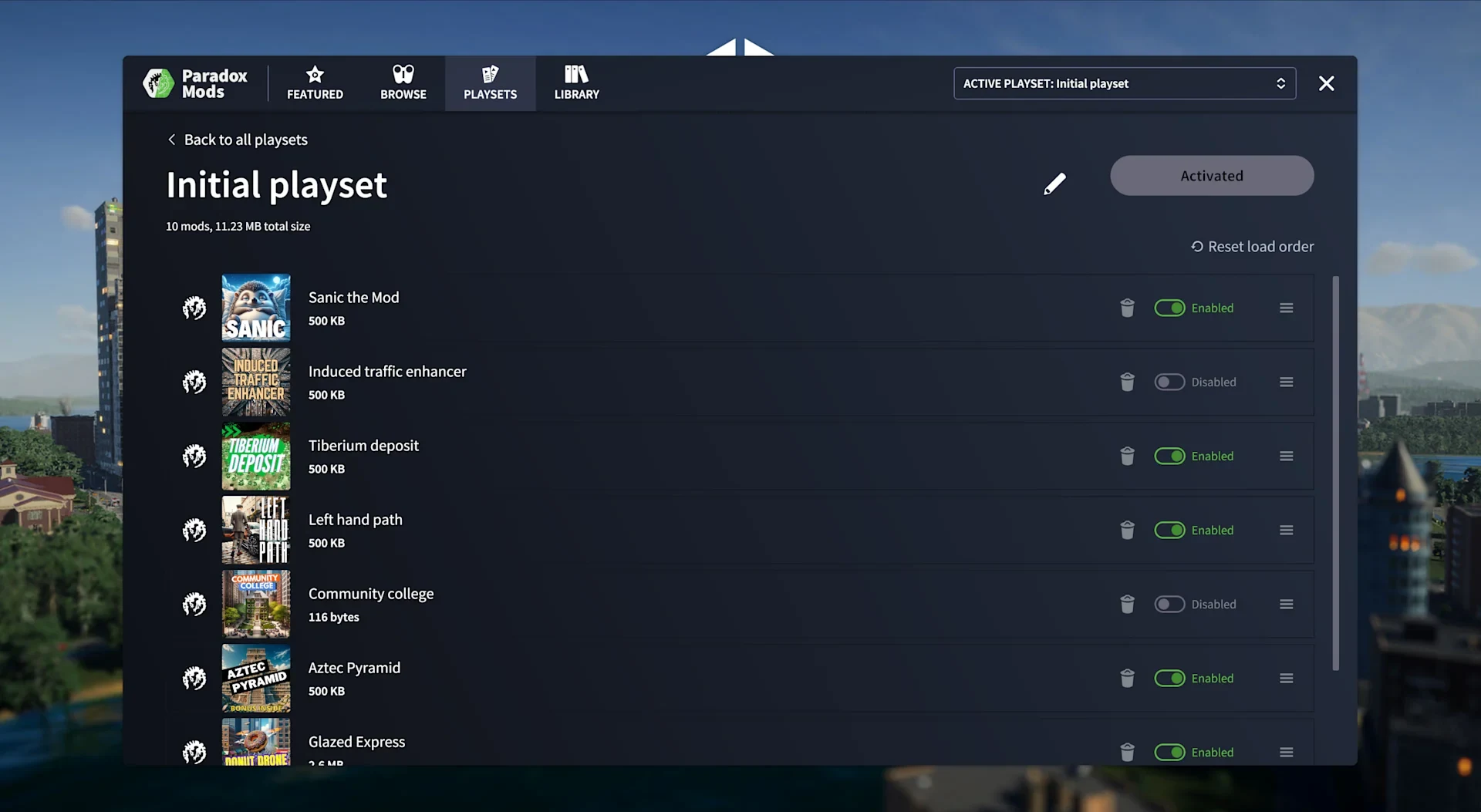
Mods are organized into playsets. A playset works like a playlist of mods that you can switch on as one group, so you can keep several setups and move between them.
- Open the mod's page in Paradox Mods and add it to the playset you want.
- If the mod relies on other mods, the game asks whether you want to add them. Accept the prompt. It adds the full chain of dependencies, including the ones those mods need.
- Repeat for any other mods you want.
- Open Playsets, select the playset, and activate it. Then start your city as usual.
You don't need to arrange mods in a load order. Mods don't have to run in a set sequence, and the game sorts out dependencies for you. A playset may show order controls, but you can leave them alone.
You can also build and change playsets on the Paradox Mods website at mods.paradoxplaza.com. Changes made there sync to the game automatically.
How to Turn Mods Off Without Losing Your Setup
Because mods live in playsets, turning them off is simple. Create an empty playset once, then activate it whenever you want a clean game. You can also remove or disable mods in the playset you're using. Your other playsets stay saved, so switching back is one step.
If you launch from Steam, you have two more options. After you click Play in your Steam Library, choose "Play Cities Skylines II with code mods disabled." If that doesn't solve the problem, turn off all modding with a launch option:
- Right-click the game in your Steam Library and choose Properties.
- Under Launch Options, paste
--disableModdingexactly. - Close the window. Remove that line later to turn mods back on.
What Mods Mean for Steam Achievements
Cities: Skylines 2 has Steam achievements, and mods can affect them. Active code mods normally stop achievement progress, and the game shows a warning when achievements are disabled. Asset mods work differently, and how they affect achievements isn't clearly defined, so don't assume any mod set will keep your achievements working.
If achievements matter to you, play with code mods turned off, using the empty playset or the Steam option.
What to Do When a Game Update Breaks Your Mods
Updates can break mods because the game's code changes underneath them. The game is built to make this less likely, but it can't stop it completely. If a mod stops working after an update, check the following:
- Look at the mod's supported game version. If it hasn't been updated for the latest version, that's likely the cause.
- Give mod makers time to catch up before you decide a mod is dead.
- Install Skyve from Paradox Mods. It's built to check mod compatibility and can point to the mods causing trouble.
Saves made with mods come with no guarantee after an update. Mods that affect the city's simulation are the most likely to be affected, so check each mod's updates or instructions before you load an older save.
How to Remove All Mods If Cities: Skylines 2 Won't Launch
If mods keep the game from opening, unsubscribe from all of them on the Paradox Mods website. Because this works from the website, you don't need the game to run. It's the most thorough option, so use it when the other options don't get the game working.
- Go to mods.paradoxplaza.com.
- Sign in with the same Paradox account you use in the game.
- Click your name in the top right corner and select My Subscriptions.
- Unsubscribe from all Cities: Skylines 2 mods.
- Restart your computer, then start the game again.