

You can install mods in American Truck Simulator in one of two ways: subscribe to them on the Steam Workshop, or download the file and place it in a folder inside your Documents. Either way, a mod does nothing until you turn it on in the game's Mod Manager, which also sets the order mods load in and confirms your changes.
If you've never played, American Truck Simulator is a driving game made by SCS Software. You take the role of a truck driver delivering cargo across American states. Mods are player-made additions such as new trucks, trailers, maps, sounds, and traffic, and the game is built to support them.
The two install methods differ mainly in where the mod comes from:
| Method | Best for | Where to get it | Main steps |
|---|---|---|---|
| Steam Workshop | Mods listed on the Workshop, with Steam handling downloads and updates | The American Truck Simulator Workshop on Steam | Open the mod page and click Subscribe |
| Manual install | Mods not on the Workshop, such as many large maps and sound packs | The author's official website or the SCS Software forum | Extract any .rar or .7z file, then copy the .scs or .zip file into the mod folder |
Install American Truck Simulator Mods From the Steam Workshop
If you own American Truck Simulator on Steam, this is the simplest method. Steam downloads Workshop mods for you and keeps them updated, so you don't have to track new versions yourself. The process takes only a few clicks:
- Open the American Truck Simulator Workshop from Steam.
- Find the mod you want and open its page.
- Click Subscribe.
- Wait for Steam to finish the download.
Once the download is done, the mod appears in the Mod Manager, ready to turn on. To remove it later, return to the mod's page and unsubscribe.
Not every mod is on the Workshop. Many large maps and sound packs are only released on the author's own website or forum, so for those you'll need the manual method.
Install Mods Manually Using the Mod Folder
The manual method works for any mod you download from its author. The mod itself is a .scs or .zip package, and the game reads that package as it is. Here are the steps:
- Download the mod from the author's official website, the SCS Software forum, or another official source.
- Check the mod's page for the ATS version it supports and any DLC or other mods it requires.
- If the download is a
.raror.7zfile, extract it first and look for the.scsor.zipfile inside. Don't unzip the.scsor.zipfile itself. - Open
Documents\American Truck Simulator. If there's no folder namedmod, create one with that exact name, in the singular. - Copy the
.scsor.zipfile into themodfolder.
Step 2 saves the most trouble. A mod made for a different game version won't be usable in the Mod Manager, and a mod that needs a DLC you don't own won't activate. It's much faster to catch either problem before you install the file.
The folder name matters, so use mod, not mods. On Linux, the same folder is ~/.local/share/American Truck Simulator/mod.
Turn On Mods in the Mod Manager
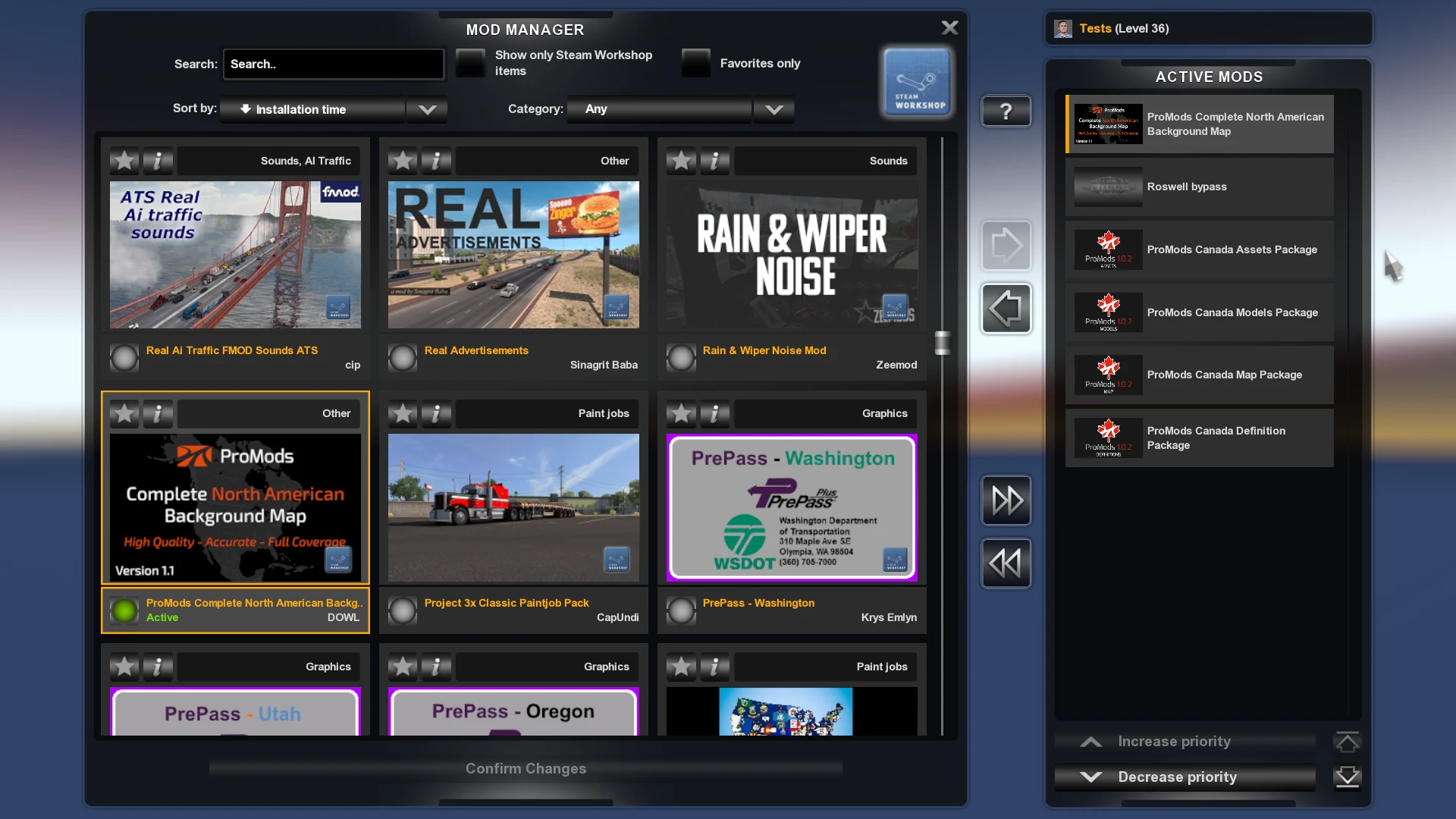
Installing a mod doesn't turn it on. You activate it in the Mod Manager:
- Start American Truck Simulator and load your profile.
- Open the Mod Manager from the main menu.
- Find the mod in the list. The Mod Manager shows every mod it detects, from both the Workshop and the mod folder.
- Enable the mods you want so they move into the active mods list.
- Confirm the changes.
Mod setups are tied to profiles. If you use more than one profile, each one keeps its own active list, so check it every time you switch.
Set the Right Mod Load Order
When two mods change the same game files, the game has to choose which change to use. In the Mod Manager, the mod higher in the active list takes priority, so its changes win. Use these rules as a starting point:
- Follow the order the map or pack author gives. Their instructions are the reference that counts, even when they differ from general rules.
- Place compatibility patches above both of the mods they connect.
- Tweak mods, such as those for traffic, sound, graphics, or physics, usually go above trucks and maps.
- Big maps usually go at the very bottom of the list.
If you're combining several maps, turn them on one at a time. After each one, start the game and make sure it loads before you add the next. If something breaks, you'll know exactly which map caused it.
Check Map Mods and Required DLC
Map mods are often the trickiest to set up. Many of them connect to areas from paid official expansions, so they won't load, or will load with gaps, if you don't own those DLCs. Before you install a map such as Reforma or Coast to Coast, check the author's page for the map DLCs it needs and the other maps it works with.
Mods can also list required DLC in their own files. If one of those DLCs is missing, the Mod Manager blocks you from turning the mod on.
Since engine version 1.48, mods can also include parts that load only if you own a matching DLC. That's why the same mod can behave differently on two different PCs. If the author recommends starting a new profile when you install a map, do it. Mixing a new map with an advanced save can leave your truck on a road that no longer exists.
Keep Mods Working After a Game Update
Mod authors can declare which game versions their mod supports. If you update the game and your mod doesn't cover the new version, the Mod Manager prevents you from using it until the author releases an update. Simple mods such as paint jobs and parts often keep working, while maps and mods that change game definitions usually break until they're updated.
Before you update, back up the profiles folder inside Documents\American Truck Simulator. If you rely on a map that hasn't been updated yet, older game versions are often listed under the Betas tab in the game's Properties on Steam. Check the exact branch name there.
If a setup breaks after an update or crash, turn off the recently added or outdated mods first. Check the author's compatibility details and DLC requirements, then turn them back on one at a time. A mod showing up in the Mod Manager or on the Workshop doesn't guarantee it will work.
Use Mods in Convoy Multiplayer
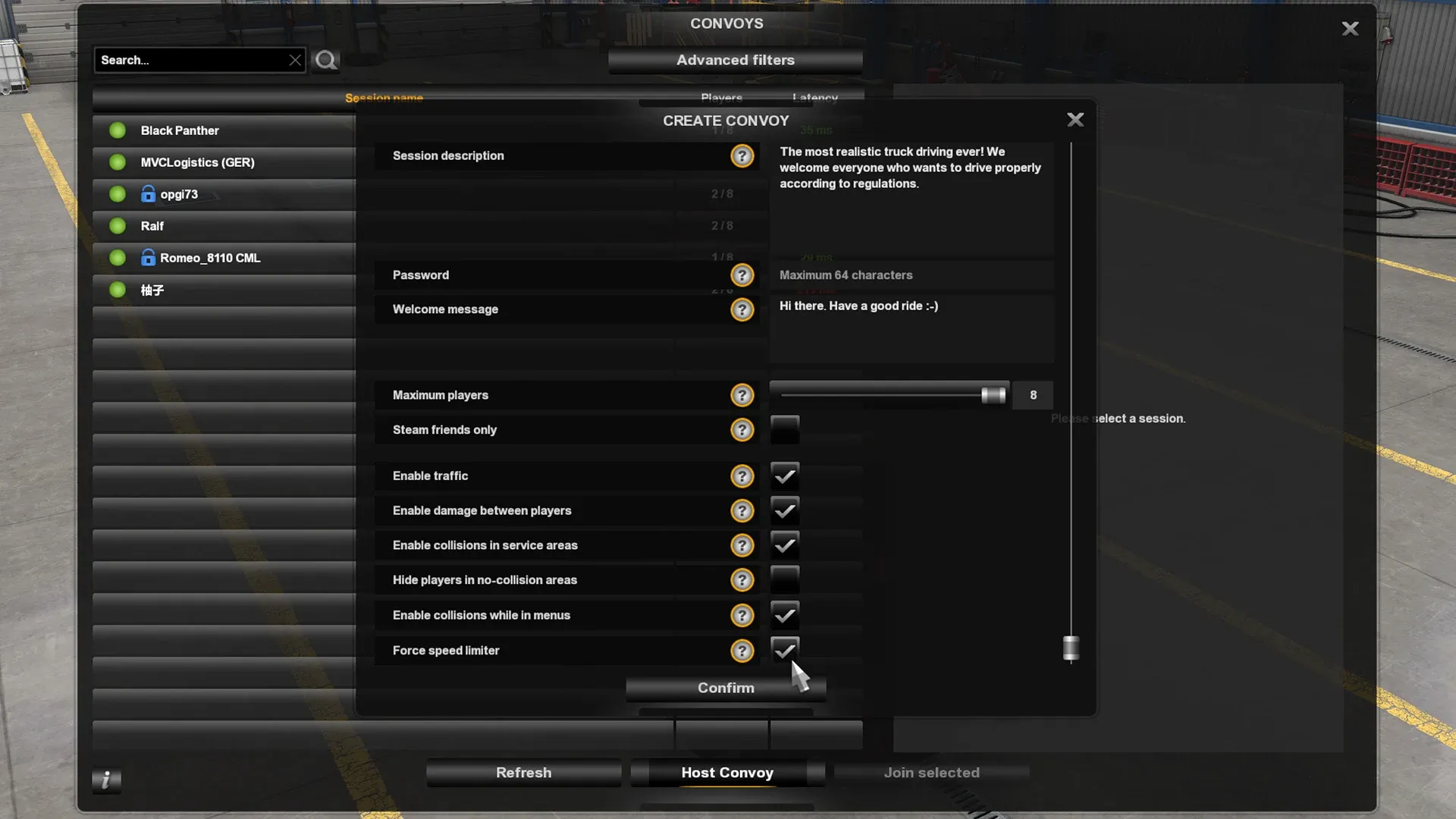
Convoy is the game's official multiplayer mode. Update 1.42 added support for mods in Convoy, so you can join sessions that use them as long as your setup matches what the session requires.
When you open the session browser, a panel on the right lists the mod requirements for each server. Servers that use mods have their own icon. An orange icon means you can't join yet, but you can fix that. Opening the mod download window shows your active mods on the left and the server's mods on the right, so you can see exactly what's missing.
Missing Workshop mods can be subscribed to from inside the game through the Steam overlay, so you don't have to quit to get them. Mods from third-party sites work differently. The game can't check their version or where they came from, so you need to find and install them yourself. Once you have everything the server requires, the confirm button becomes available and you can join.
Authors can mark some mods as optional for multiplayer, so not every mod has to match. A server has to allow optional mods, and you need to allow servers with optional mods in the session browser filter. Map mods ignore the optional setting, so compare your maps first. If you still can't join, compare your active list with the host's.
Fix Common Mod Errors and Crashes
Most mod problems fall into a few patterns:
- The mod doesn't appear: It's in the wrong folder, it's still inside a
.raror.7zfile, or the.zipcontains another folder instead of the mod files. - The game crashes when loading the profile: This is usually an outdated map, a missing DLC, or the wrong load order.
- Textures or models are missing: A file from the pack, or a dependency the author lists, isn't installed.
For crashes, open Documents\American Truck Simulator\game.log.txt and look for lines marked as errors. They usually name the file or mod causing the problem. If the cause still isn't clear, turn off half of your mods, test the game, and keep narrowing the group until you find the one responsible.
Mods can also change how some achievements count. Custom trailer types can affect cargo-type achievement counters, and custom truck types can affect brand-distance counters. Not every mod does this, but if you're going for a specific achievement that depends on a particular truck, trailer, or cargo type, turn off the relevant mods while you work on it.