

To play Convoy with friends in American Truck Simulator, finish the opening delivery, then host a session or join one from the Convoys menu. Convoy is the game's built-in multiplayer mode, where up to eight players drive the same roads in one shared session while each keeps their own career. If you're new to the game, it's a trucking game where you take cargo jobs and haul them across the map.
| What you need | Details |
|---|---|
| Game version | Version 1.41 or newer, the same for every player |
| Starting point | Finish the opening tutorial delivery on a new profile |
| Players per session | Up to 8 |
| Password | Only if the host sets one |
| Mods | Your active mods must meet the session's requirements |
Finish the Opening Delivery and Update the Game
Convoy is part of American Truck Simulator itself, not a separate add-on. It arrived in version 1.41, so older installs don't have it. If you've turned off automatic updates or stayed on an older version, update before you try to join.
On a new profile, Convoy opens up once you finish the opening tutorial delivery. You don't need to reach a higher player level first.
Get Your Friends Ready on Steam
Your friends need to be on your Steam friends list and set to online, or their sessions may not show up for you. If you haven't added someone yet, the Steam overlay keeps a list of players you've recently driven with, with links to their profiles.
How to Host a Convoy Session in American Truck Simulator
Hosting lets you set the rules, and your friends join your session instead of starting their own. The process is short:
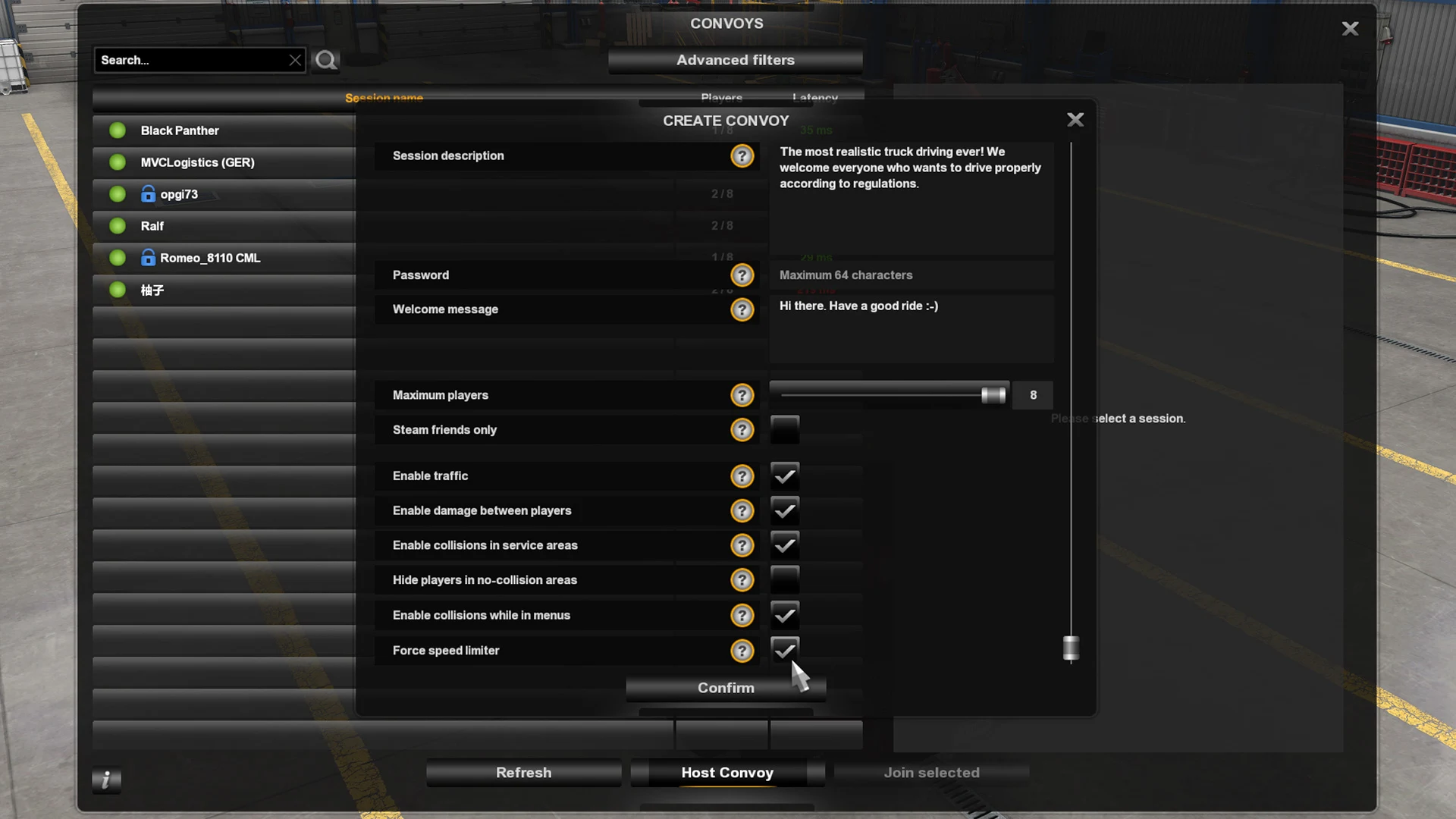
- Open the Convoys menu from the main menu and choose to host a new session.
- Enter a session name. Friends have to type it exactly, so keep it simple.
- Choose who can see the session: public, or Steam friends only.
- Set a password if you want one. Anyone who joins will need to enter it.
- Pick your session options, such as traffic, player damage, and collisions.
- Confirm, then open the Convoy info screen to find your Search ID.
- Send your friends the session name or Search ID, plus the password if you set one.
As the host, you act as the session's admin and control its settings. Convoy supports up to eight players, and eight is the limit the game supports. Editing config files to allow more isn't supported, so plan your group around that number.
How to Join a Friend's Convoy Session
Joining happens from the same Convoys menu, and you have two easy ways in. You can search for a session by its name or Search ID, or accept a Steam invite from a friend. A Search ID is the most direct route when someone gives you one.
- Open the Convoys menu and go to the session browser.
- Refresh the list, or type the session name or Search ID into the search bar.
- Select the session and choose to join.
- Enter the password if the session asks for one.
- If a window lists mods you're missing, sort them out before you retry.
Steam invites skip the search altogether, so they're the quickest option when a friend is ready to drive.
Why You Can't See or Join a Friend's Session
When a session won't appear or won't let you in, run through these checks:
- Game version: Everyone needs the same version, 1.41 or newer. A mismatch blocks the join.
- Friend status: Your friend should be on your Steam friends list and online.
- Name: Type the session name exactly, including symbols, numbers, punctuation, and abbreviations. A Search ID avoids this problem.
- Region: Sessions hosted far away may not appear in your regional list. Search the exact name from the search bar, which works across all regions, or change your Steam download region to match the host's.
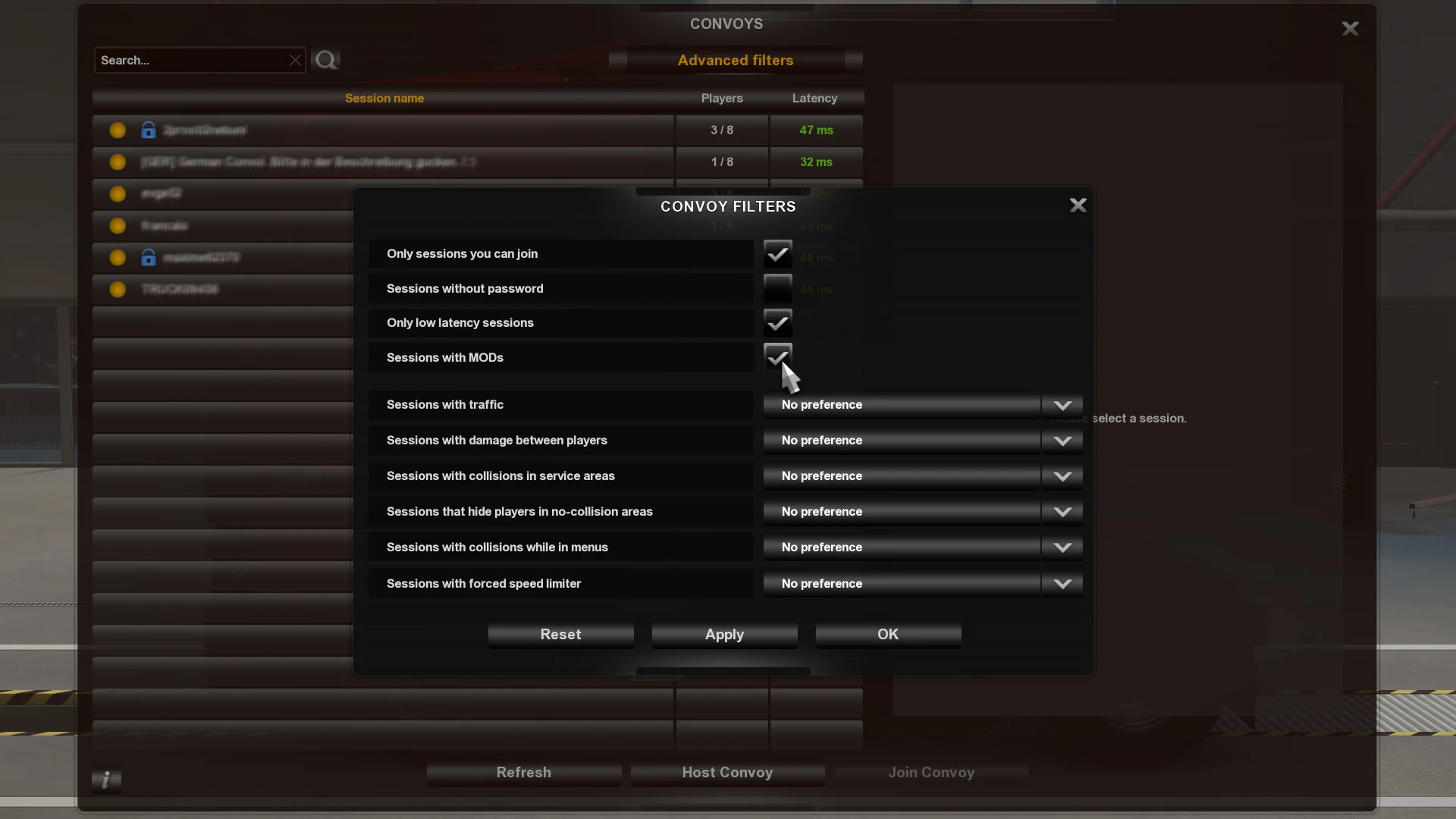
- Filters: A browser filter can hide sessions, so check your filters and refresh the list.
- Full sessions: A session with eight players won't let anyone else in.
- Host status: A player-hosted session closes when its host leaves, so ask the host to start a new one.
- Mods: Mods that don't match the session's requirements can block the join.
What You Share in a Convoy Session
Convoy sessions share more than a road. AI traffic and weather are the same for everyone, so the world looks the same from every truck. The time of day you see follows the host, but it doesn't change how much time is left on your own delivery.
You can also take the same job as another player from the same company, heading to the same destination. That includes external jobs from World of Trucks. The job comes from cargo another player has listed, and each of you still runs a separate career.
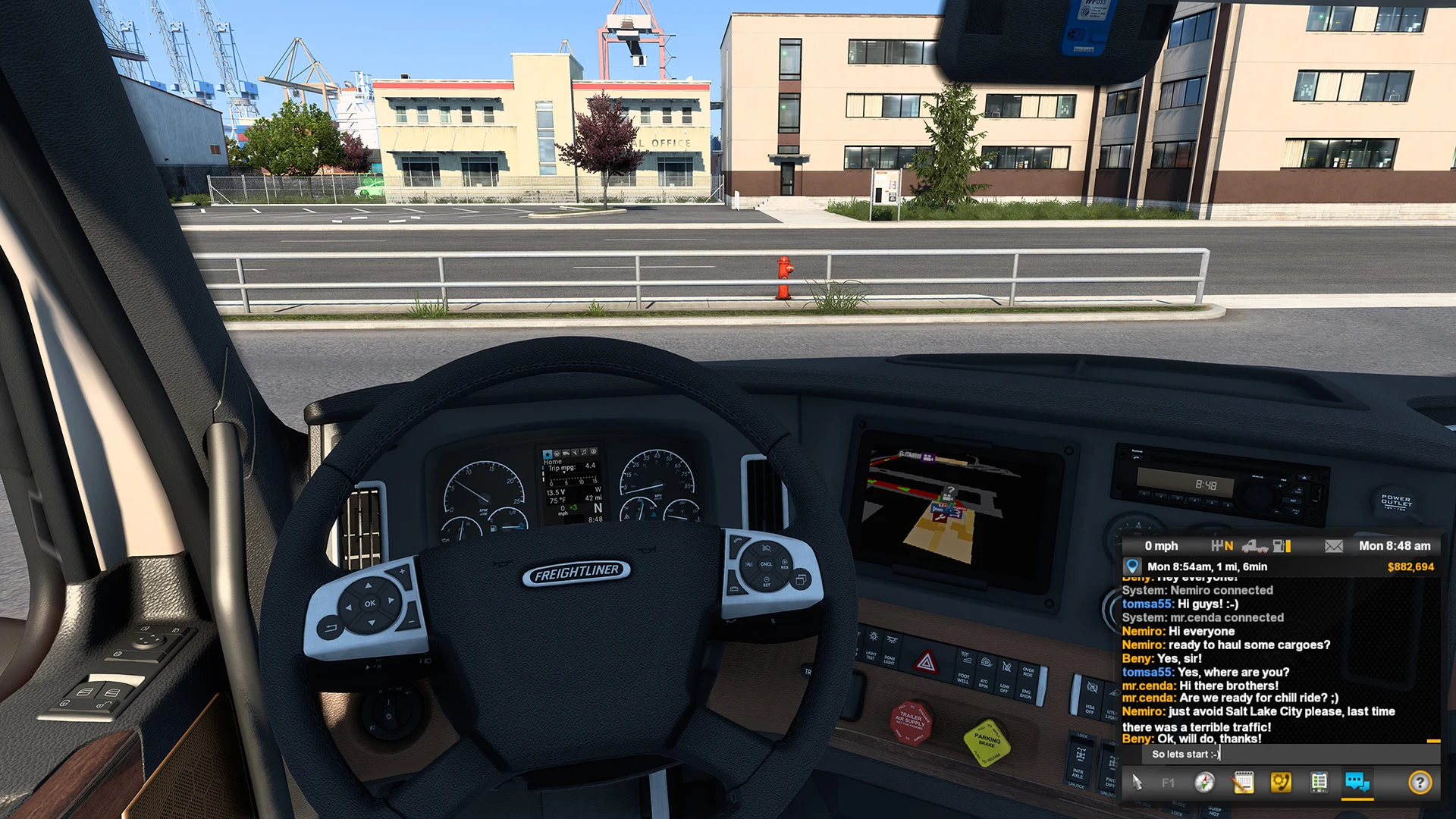
To talk while you drive, use CB radio, quick replies, or text chat. Convoy asks more of your computer than single-player does, because it draws several player trucks at once, so a lower frame rate is normal. If the drops are severe, contact the game's support with a clear description of the problem.
Playing Convoy with Mods
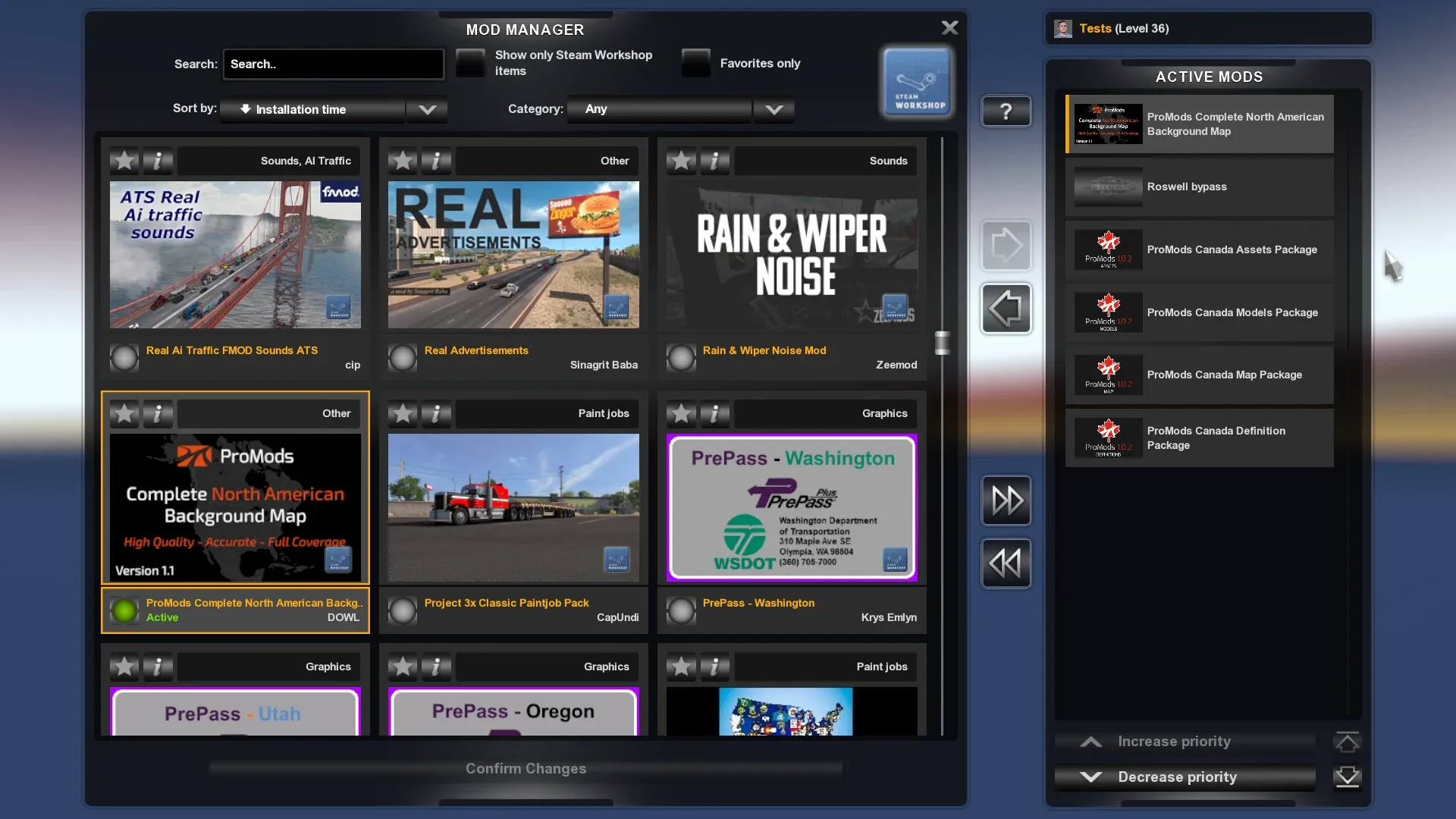
Convoy supports third-party mods, but your active mods must meet the session's requirements. When you try to join, the join window shows your mods on one side and the session's mods on the other, so you can see what's missing before you commit.
- Compare the two lists in the join window.
- Subscribe to any missing Steam Workshop mods through the Steam overlay, which opens from that window so you don't have to exit the game.
- Install any missing mods that aren't on the Workshop yourself. The game can't check their version or where they came from, so make sure you have the version the session uses.
- Retry once the confirm button becomes available.
Mods can behave differently in multiplayer. Sounds from a mod are heard only by the player who has it, and other players may hear only the default truck sounds.
What Happens to Your Progress When the Host Leaves
Each player keeps a separate profile and career, so a shared session doesn't merge your progress with anyone else's. A player-hosted session is different. When the host leaves, the server closes and everyone is disconnected, even if the host left by accident.
The game gives you a choice when this happens:
- Keep progress: You stay where you were when the session ended, back in single-player.
- Revert: You return to your previous save. This helps if you lost in-game money, took damage, or lost other progress you want back.
Once you've picked one, you can start a new session with the same group or a different one.
How to Set Up a Dedicated Server for Convoy
A dedicated server is a session that keeps running even when nobody is playing, so it doesn't close when a friend logs off. It suits groups who play at different times, but setup takes more work than hosting from the game. Plan to run it on a computer that stays on.
- Install the American Truck Simulator Dedicated Server tool through Steam, using App ID 2239530. If you don't use the Steam client, download it with SteamCMD instead. SteamCMD doesn't update the server automatically, so check for updates yourself.
- In the config.cfg file in the game's home folder, set
uset g_console "1". Start the game, load the map you want, press~to open the console, and runexport_server_packages. This creates server_packages.sii and server_packages.dat, which copy your setup for maps, DLC, and mods. - Launch the server once. It creates its home folder and a default server_config.sii. At this stage it will report that server packages are missing, which is expected.
- Make sure server_packages.sii and server_packages.dat are in the server's home folder. If the server runs on a different machine, copy them there.
- Open server_config.sii and set the session name, password, and player count.
- Start the server and note the Search ID, which appears when it starts.
To show the server in the session browser, you need a public IP address or port forwarding. Forward both TCP and UDP rules for the physical ports. Virtual ports don't need forwarding. Without that setup, friends can still connect by searching the Search ID, even if the server is behind a router.
If the server closes with a Steam disconnected message, the connection to Steam dropped, which can happen when the internet cuts out or the computer goes to sleep. For other errors, check server.log.txt in the server's home folder, and server.crash.txt if the server crashed.