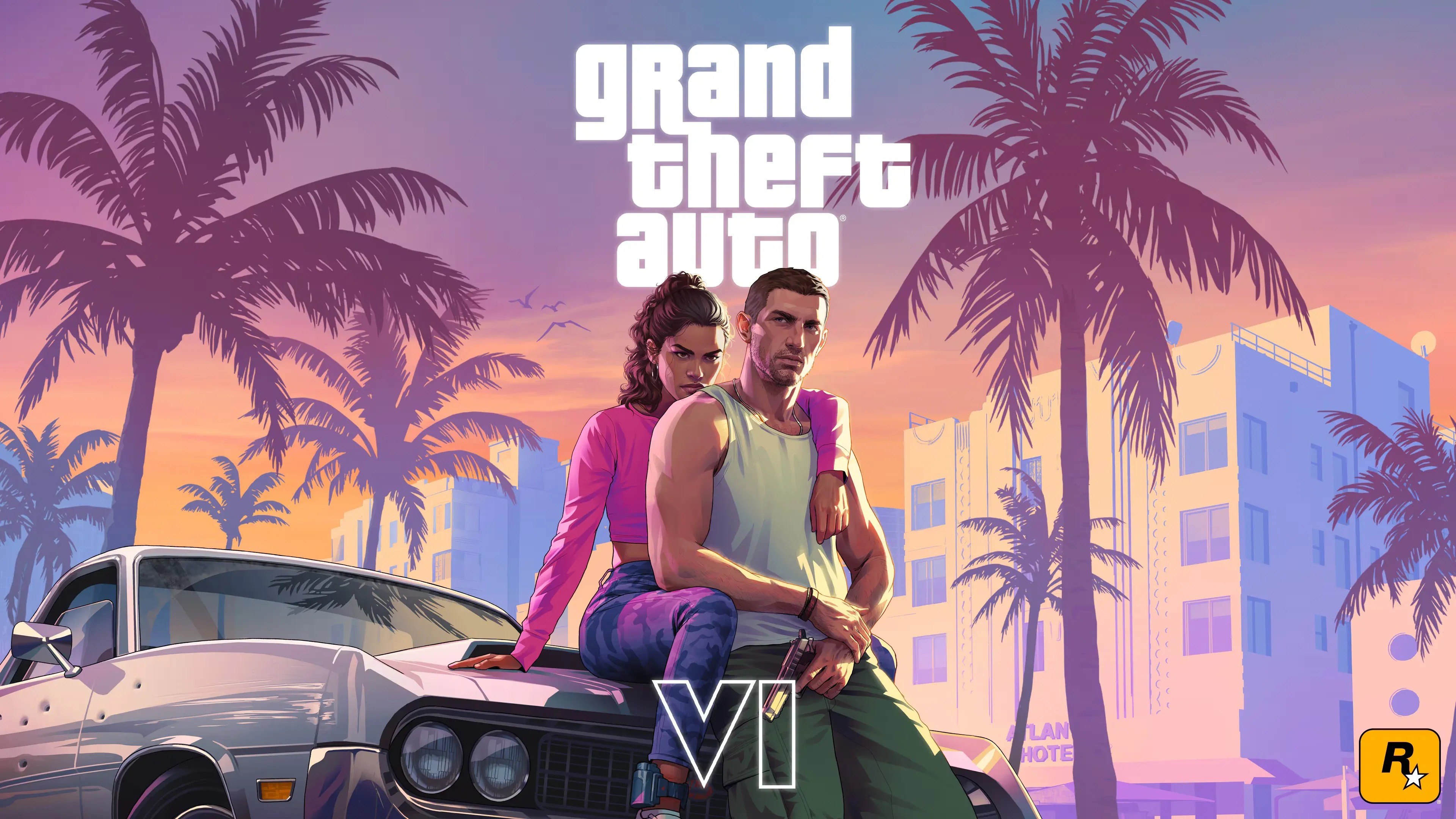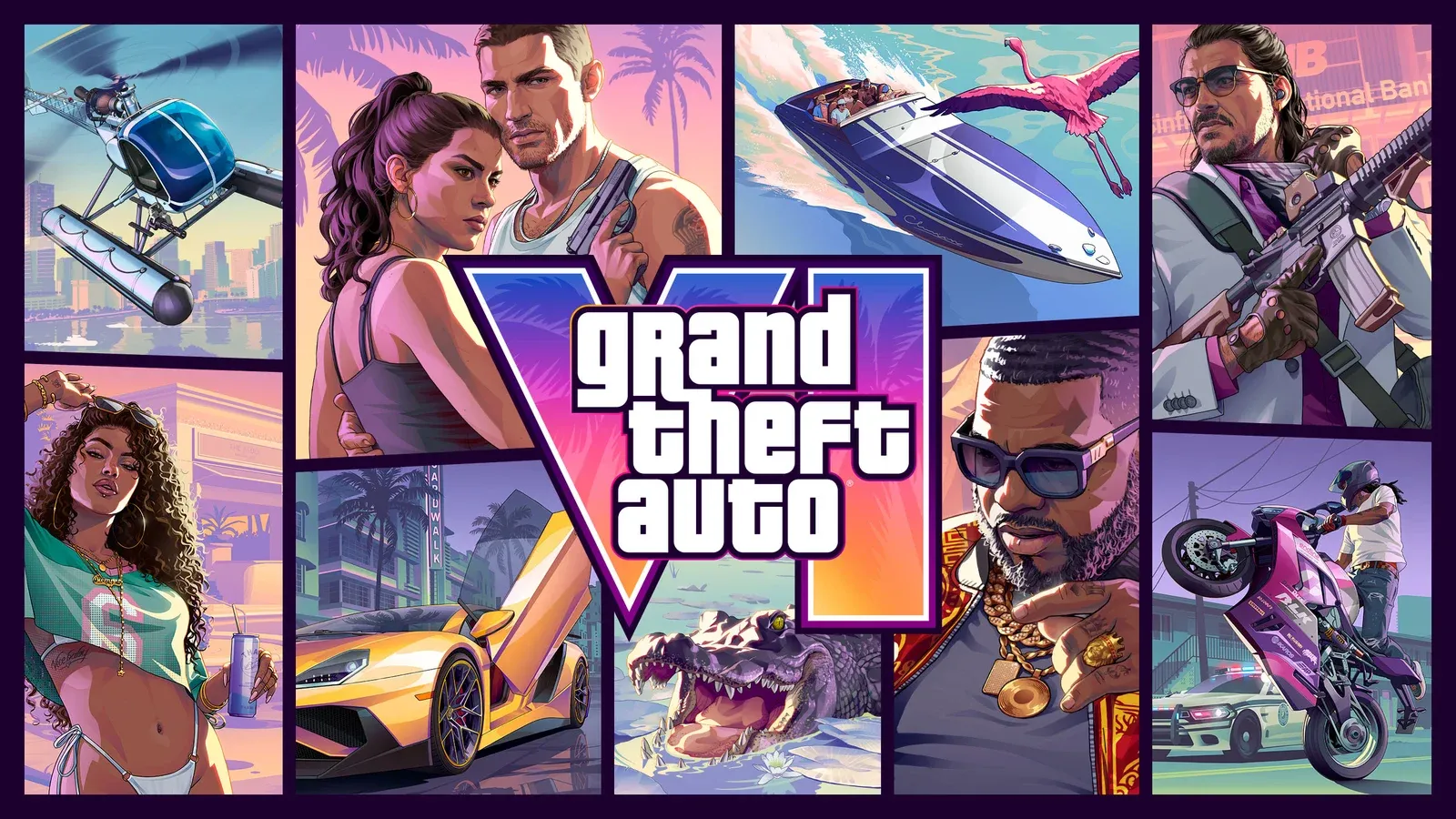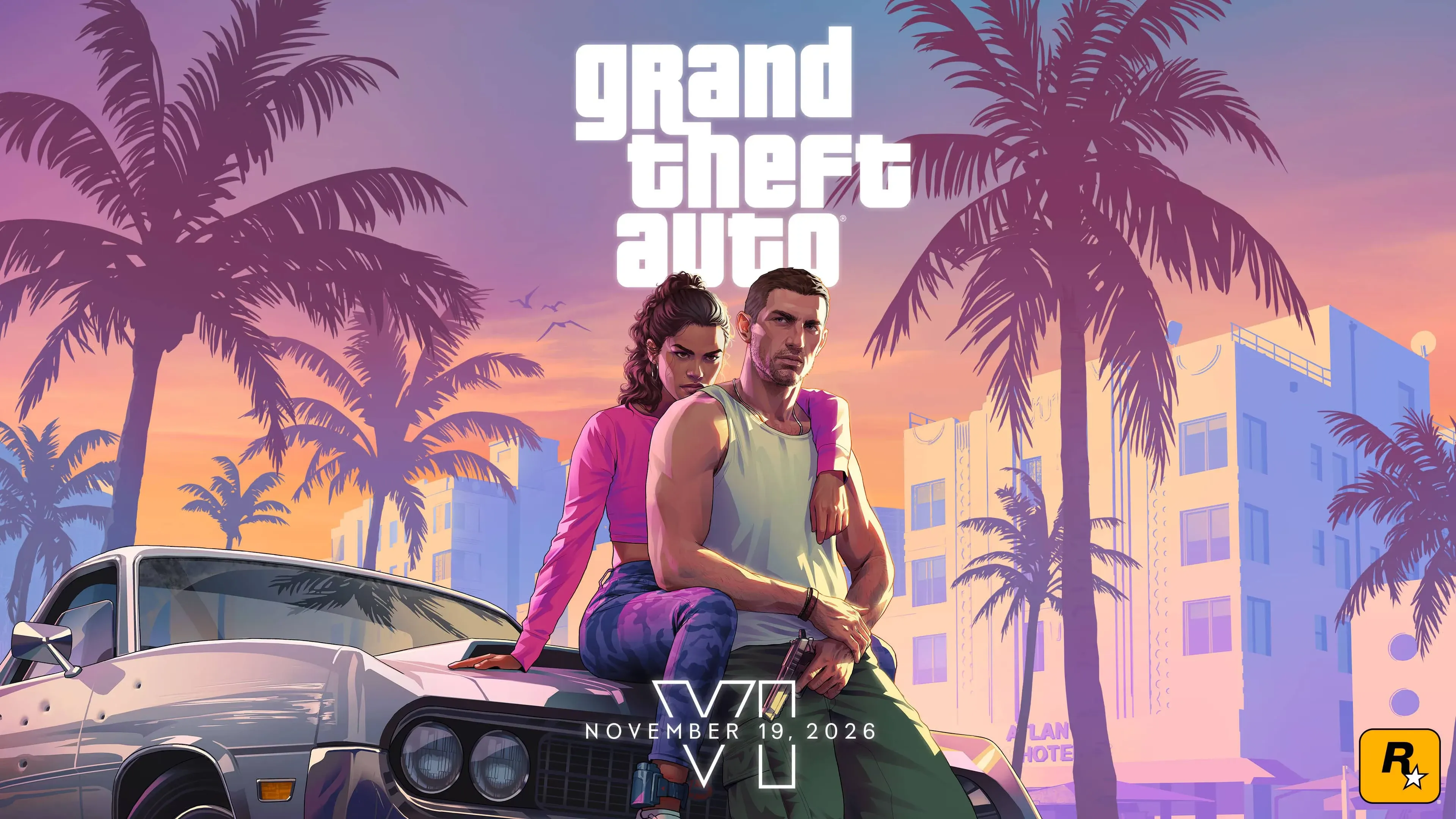

Discord's Vice City theme is free for everyone during a limited window, and you can get it by opening Discord's official Vice City post and tapping Apply the Theme between November 16 and 22. After November 22, you'll find it in your settings. Grand Theft Auto VI returns to Vice City on November 19, and the theme brings that neon look into the app with a color theme, a matching app icon, and a Display Name Style, which changes the font, color, and effects of your name.
| Who can use it | Available until | Paid plan needed? |
|---|---|---|
| Everyone | December 13, 2026 | No |
| Nitro members, excluding Nitro Basic | February 20, 2027 | Yes, Nitro |
The free window is open to every account, so you don't need to subscribe to try the theme. After the free window closes, access is kept only for Nitro members, and Nitro Basic is left out of that longer period, so check your plan if you want to keep the theme.
How to Apply the Vice City Theme From November 16 to 22
The first week is the quickest way in, because Discord's blog post has a button that takes you straight to the theme. You don't need to dig through menus to find it.
- Sign in to Discord on your desktop or mobile device.
- Open Discord's official blog post, "Give Discord a Vice City Makeover."
- Tap or click Apply the Theme.
- In Quest Home, apply the Vice City theme.
The button is set up for the first week only, so it's worth using while it's open. Because it lands you in Quest Home on the theme itself, you skip the search you'd otherwise need to do.
Where to Find the Vice City Theme in Settings After November 22
After November 22, the button is no longer the way in, so you'll switch to your regular settings. The color theme and app icon sit in the same place, but the steps differ slightly between desktop and mobile.
On desktop:
- Open User Settings.
- Select Appearance.
- Choose the Vice City color theme and the Vice City app icon.
On mobile:
- Open Settings.
- Go to App Settings.
- Choose the Vice City color theme and the Vice City app icon.
Both routes lead to the screens where Discord keeps its look, so the Vice City options sit beside the other appearance choices, and you won't have to hunt for them.
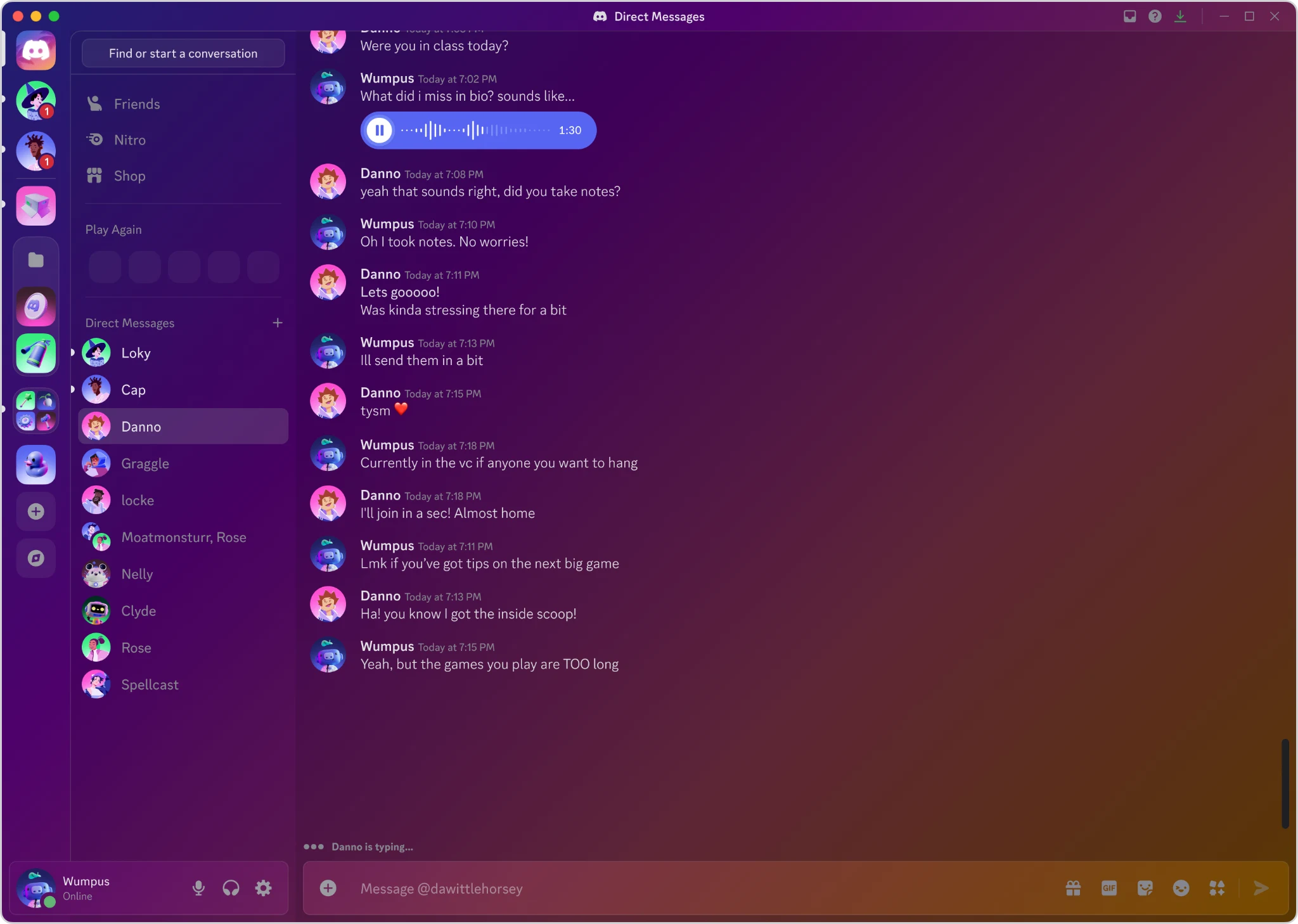
How to Set Up the Vice City Display Name Style on Desktop and Mobile
Display Name Style changes how your name looks in Discord, using a font, a color, and an effect. You set it from your profile rather than from the theme screens, so it works differently from the color theme and app icon.
On desktop:
- Click your username in the bottom-left corner to open your profile card.
- Click Edit Profile.
- Under Display Name Style, click the + button, then choose your font, color, and effect.
On mobile:
- Tap You at the bottom of the screen.
- Tap Edit Profile.
- Under Display Name Style, tap Font, Effect, or Color, choose your options, then tap Apply.
Display Name Styles are normally a Nitro feature, so if a free account can't save one, that's the likely reason. The promotion includes a Display Name Style, but its free terms are less clear than the theme's, so try saving one before you count on it.