
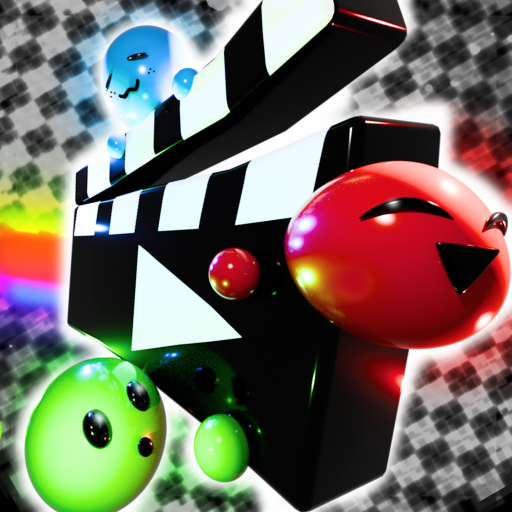
In My Movie on Roblox, you make a short movie in the Create editor, then publish it so other players can watch. Inside the editor, you place avatars on the screen, add text, pictures, sound and animation, then line up your scenes on a timeline and trim each one. Some tools open as you make more movies: Stickers after 2, Backgrounds after 3, and Timings after 4, which lets one object have up to 4 animations. The extras open in steps, so you get comfortable with the basics before you reach them.
To watch, head into the cinema, where films play one after another on a big screen. The Movies menu is the other place to look, with a Community feed (Rising and Promotions), a Following tab for creators you follow, and My Movies for your own films. You can like and comment on any movie, and search by username or hashtag to find what you're after.
Tickets are the game's money. You can catch the Tickets that fall while you watch in the cinema, claim daily login rewards, or buy them with Robux. Spend them on sticker packs, background packs, music packs and pose packs, or on playing a movie on the big screen. As you go, your list in My Movies grows and your editor fills up with more tools and packs.
- Creator
- Good Ape
- Game Created
- May 30, 2023
- Last Updated On
- November 4, 2026
- Age Requirement
- All Ages
- Genre
- Entertainment
- Subgenre
- Video
- Supported Devices
- DesktopMobileTabletConsoleVR
Game data
Editor Tools:
The editor tools are the Tools panel, timeline and controls players use in Create mode to build their movies. The Tools panel holds Pictures, Text, Sound and Avatars, and each of those opens its own set of options. Each scene is a clip on the timeline, so selecting the right one comes first. Some packs, including sticker, background and pose packs, cost Tickets.
My Movie Gameplay Tips
- Watch a few movies in the cinema before you build your own. You'll see how other players pace their scenes and which formats keep viewers interested.
- Use Copy slide when one moment should flow into the next. It starts the new slide where the last slide's animation ends, so the motion carries on smoothly from one scene to the next.
- Upload your own pictures as decals. Upload your image to Roblox as a decal, then paste its ID into the Pictures search. This lets a photo or drawing you made appear in your movie.
- Preview the whole movie before you publish. Playback is where dead air and timing mistakes show up, so you can fix them before anyone else sees the film.
- Choose your sounds carefully. Each clip can use up to 3 sound effects and 1 music track. Since the limit is small, save those slots for the sounds that add the most to the scene.
- Invite friends to make a movie together. Use Invite to bring friends into your project so you can share the work. Each player's "Allow Team Create invites from..." setting decides whether they get invites from anyone, only friends or no one, so ask a friend to check it if your invite doesn't reach them.
My Movie Events
Recent updates, live events, and completed event history for My Movie.
BETTER SOUNDS UPDATE!
CompletedStarts (PT): Apr 7, 2026, 6:00 PM.Ends (PT): Apr 11, 2026, 6:00 PM
ADVANCED ANIMATION UPDATE
CompletedStarts (PT): Dec 25, 2025, 6:00 PM.Ends (PT): Dec 28, 2025, 6:00 PM
NEW UPDATE
CompletedStarts (PT): Dec 8, 2025, 6:30 PM.Ends (PT): Dec 11, 2025, 6:30 PM
More From This Developer
Other Roblox experiences from Good Ape on Bloxodes.