

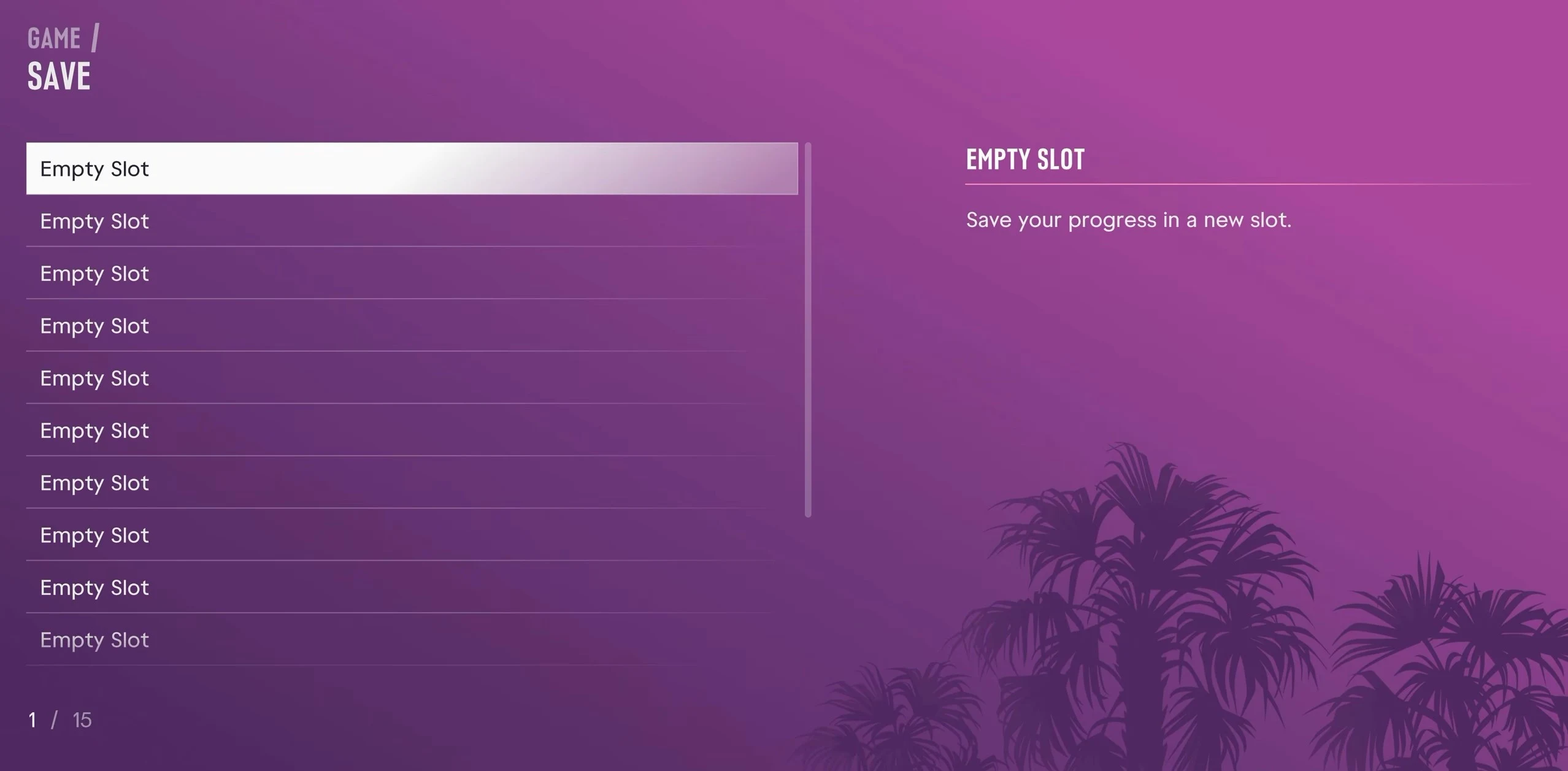
Save from the pause menu out in the open world: press Options on PS5 or Menu on Xbox, choose Game, then Save Game, and pick a slot. You get 15 manual slots plus one autosave. Completed story missions can't be replayed, so to go back to one, you need a manual save made before it started.
| Save type | How many | How it's made | What happens to it |
|---|---|---|---|
| Manual save | 15 slots | You make it from the pause menu | Kept until you overwrite it |
| Autosave | 1 slot | The game makes it after major missions and certain open-world events | Replaced by the next autosave |
How to Save Manually in GTA 6
Once manual saving is unlocked, you can make a save any time you're out in the open world and not on a mission. The steps are the same every time.
- Press Options on PS5 or Menu on Xbox to open the pause menu.
- Choose Game, then select Save Game.
- Pick an empty slot for a new save, or an old manual save you no longer need.
- Check the slot before you confirm, then wait for the save to finish before you close the game.
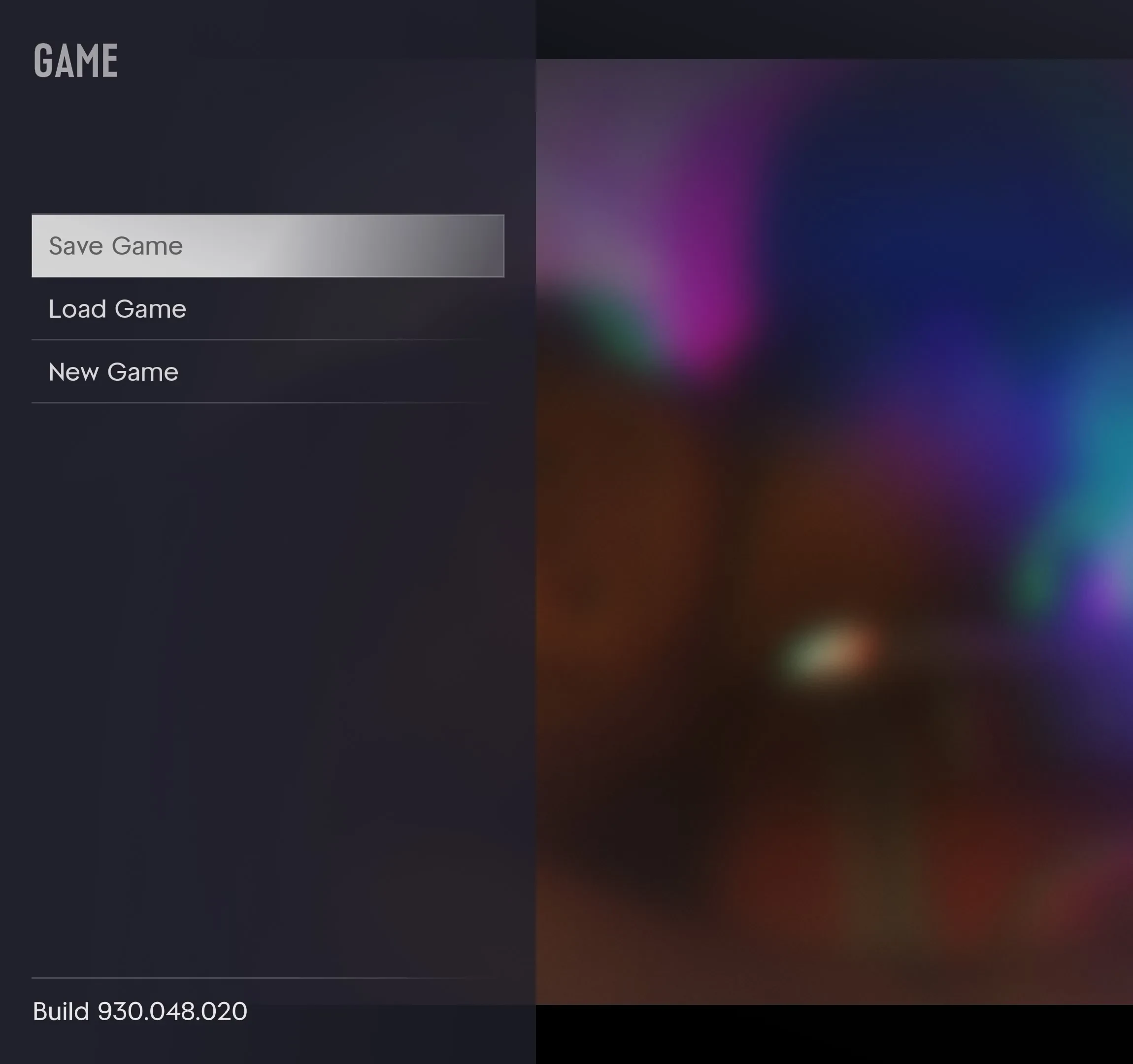
Overwriting replaces the old save for good, so use an empty slot when you want to keep what you already have. You don't need to go back to a bed or a safehouse first, since the pause menu works out in the open world.
When You Can and Can't Save in GTA 6
During missions, Save Game is usually grayed out. If it won't open, finish what you're doing first, then save. Plan your saves for the quiet moments between jobs.
Cheats are the other hard limit. You can't save while a cheat is active, and switching one on also turns off trophies. Cheats only unlock once the story is finished, so if you plan to use one, save to a spare slot first. You can find each one in the full cheat list.
When Manual Saving Unlocks
Manual saving is locked for the whole prologue, the story-driven opening of the game. You can't make manual saves at all during it.
Manual saving opens once you reach Jason's house at the marina, right after completing Brian's first mission. From that point on, Save Game appears in the pause menu.
How the Autosave Works in GTA 6
GTA 6 saves on its own as you play. The autosave gets its own slot, separate from your 15 manual ones. It updates after major mission completions and certain events out in the open world, and each new autosave replaces the last one, so it only holds your most recent progress.
That makes the autosave good for recovering from a recent mistake, but not for going back far. If you realize hours later that you want to revisit an earlier point, the autosave may already hold much newer progress. A manual save from that point stays where you put it until you overwrite it.
How to Load a Save in GTA 6
- Open the pause menu with Options on PS5 or Menu on Xbox.
- Choose Game, then select Load Game.
- Pick the autosave or any manual save, then select Load.
Loading a save returns you to that point, so anything you did after it is lost. Keep that in mind before you load, especially if you only wanted to undo one bad moment.
Can You Replay Missions in GTA 6?
No. Once you complete a story mission, you can't pick it from a menu and play it again. Finishing the main story doesn't unlock a replay option either, and there's no chapter select. GTA 5 let you replay missions after finishing them, so this is a real change to plan around.
You can still retry a failed section or restart a mission while you're playing it. Once you've completed the objective, though, there's no way to launch that mission again directly.
To go back to a finished mission, load a manual save made before the mission started. If you don't have one from before, the only option is to start a new playthrough. If you want to plan ahead, the full list of story missions helps you see which ones are coming up.
How to Set Up Your 15 Save Slots
Treat the 15 slots as checkpoints rather than one file you keep overwriting. A simple split works well:
- Permanent saves: a few slots you never overwrite, such as the start or end of a chapter. Once those are gone, you can't get that story state back without playing through again.
- Milestone saves: chapter endings or big decisions, so you can return to a choice you want to see again.
- Rotating saves: the rest, used for your next mission or side activity. Alternate between a couple of slots after each mission, so there's always a recent fallback close by.
Make a manual save before a major story mission, before a significant decision, or before anything you might want to approach differently later. Risky moments are worth saving for too, like high-risk heists or a trip into remote areas. A gunfight with police, a blown-up vehicle, or an irreversible story choice can cost you rare stolen vehicles, money and hours of progress if you have no manual save to fall back on.
Some optional activities are marked with an hourglass icon. They can become unavailable if you leave them unfinished for too long, so saving beforehand is a sensible precaution if you want to see them all.