

GTA 6's open world runs from sunny streets to neon-lit nights and dark interiors, so the picture has to handle a wide range of light. To get the best picture and the quickest response on a PS5 or Xbox Series X|S, turn on Game Mode and turn off motion smoothing and energy saving on your TV, then set HDR on the console and run its HDR calibration. Here are the recommended values for each console.
| Setting | PS5 | Xbox Series X|S |
|---|---|---|
| TV Game Mode | On | On |
| TV motion smoothing | Off | Off |
| TV energy saving and auto brightness | Off | Off |
| TV HGiG (if available) | On | On |
| Resolution | Automatic | 4K UHD (3840 x 2160), Allow 4K enabled |
| HDR | On When Supported | Allow HDR10 enabled |
| HDR calibration | Run Adjust HDR | Run Calibrate HDR for Games |
| Auto low-latency mode (ALLM) | On | Allow auto low-latency mode enabled, if supported |
| Variable refresh rate (VRR) | On, if the TV supports it | Allow variable refresh rate enabled, if supported |
| 120Hz output | On, if the TV supports 120Hz | Refresh rate set to 120Hz, if supported |
Turn On Game Mode and ALLM on Your TV for GTA 6
Game Mode is the first setting to change. It reduces the extra image processing your TV does in the background, which cuts input lag. Input lag is the short delay between pressing a button and seeing the result on screen, and it matters in an action-packed game like GTA 6.
The name changes by brand. LG calls it Game Optimizer, while Samsung, Sony, and TCL use Game Mode. On some Sony TVs, the same option may sit under a content type setting, so choose Game there if you can't find Game Mode.
Auto low-latency mode, or ALLM, works alongside it. When it's on, the console signals the TV to switch into its low-latency mode as soon as a game starts, so you don't have to change anything by hand. Turn it on at the TV, check the manual to confirm your model supports it, and turn on the matching option on the console.
Turn Off Motion Smoothing on Your TV
Motion smoothing, also called frame interpolation, makes the TV create extra in-between frames so movement looks smoother. That suits films and TV shows, but in a game those extra frames add delay and can make fast movement look unnatural. Turning it off keeps the picture closer to what the console sends.
Each brand uses its own name. LG calls it TruMotion, TCL uses Action Smoothing and Motion Clarity, and Samsung's version is called Game Motion Plus. Samsung suggests Game Motion Plus for slower role-playing and adventure games, where it can give a softer picture, so if you like that look in a slower game, it comes down to taste. For GTA 6, off is the lower-delay choice.
Turn Off Energy Saving and Auto Brightness
Energy saving modes and automatic brightness controls dim the screen to save power or to match the light in the room. That makes dark scenes harder to read, and it makes HDR highlights look uneven because the brightness keeps shifting while you play.
Turn off Energy Saving, Eco Mode, and any automatic brightness option on the TV. Then set the brightness yourself so the picture looks right in the room where you play.
Set the Resolution and HDMI Connection on PS5 and Xbox
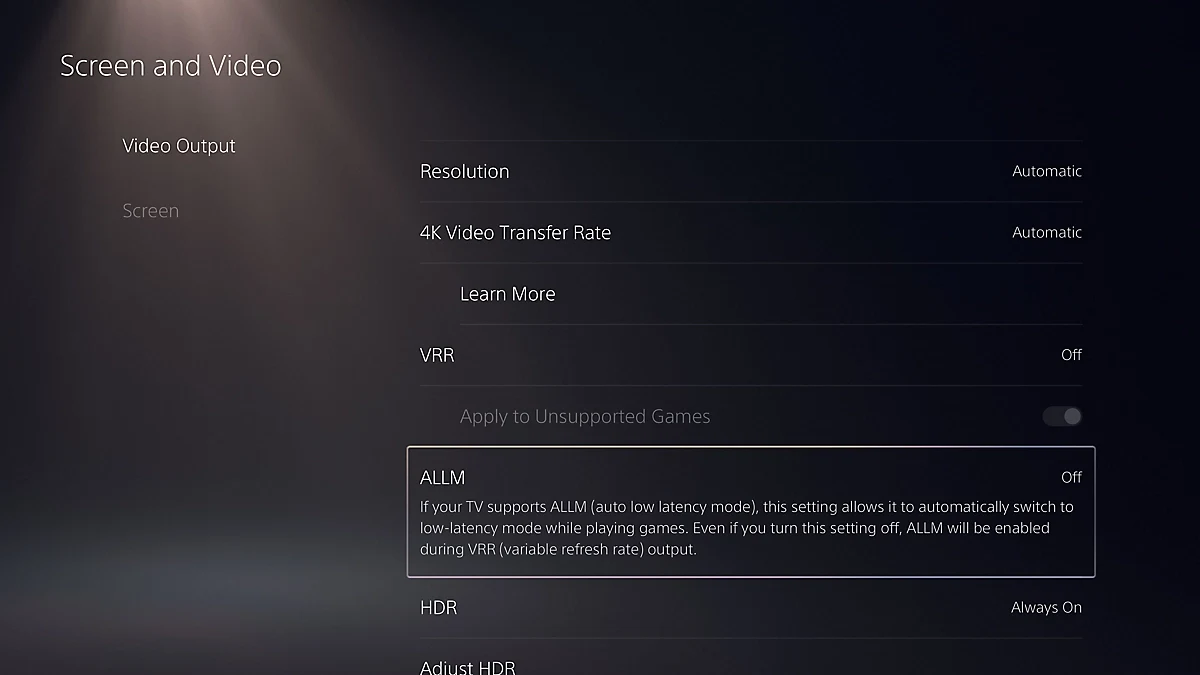
On PS5, go to Settings > Screen and Video > Video Output and leave Resolution on Automatic. The console checks what your TV can handle and picks the highest resolution it supports. Leave Video Transfer Rate on Automatic too.
On Xbox, go to Settings > General > TV & display options > Video modes and set the resolution to 4K UHD (3840 x 2160). Keep Allow 4K enabled, but if the screen goes blank or shows errors with 4K content, uncheck it. Xbox menus have moved around over the years, so look for the closest match if the names differ on your console.
Getting 4K at 120Hz on PS5 needs an HDMI 2.1 connection. The console supports it, but not every TV handles it well, so if nothing appears on screen or the picture drops to 1080p at 120Hz, check these:
- Does the TV say it supports 4K at 120Hz?
- Is the TV running its latest firmware?
- Are you using the cable that came with the PS5, or an Ultra High-Speed cable rated for 4K at 120Hz?
- Is the PS5 plugged straight into the TV, not through a receiver or another box?
- Is it in the TV's HDMI 2.1 port? Check the manual, since some TVs need a setting changed before HDMI 2.1 works.
On Xbox, the most advanced features also need an HDMI 2.1 connection. Some content needs HDCP 2.2, so make sure your TV supports it and has it turned on in its settings.
Set HDR to On When Supported on PS5 and Allow HDR10 on Xbox
HDR, or high dynamic range, lets a picture show bright highlights and deep shadows at the same time. That helps with sunny streets and dark interiors, where a standard picture can look flat or lose detail in the shadows.
On PS5, the HDR setting has two choices. On When Supported shows games that aren't built for HDR in the standard picture, while Always On converts them to HDR. Pick On When Supported so those games look the way they were made.
On Xbox, turn on Allow HDR10. If colors look strange, uncheck it. Your TV also needs to support HDR10 on the HDMI port you're using.
Turn On HGiG if Your TV Has It
HGiG, short for HDR Gaming Interest Group, is a TV setting that stops the TV from applying its own tone mapping. Tone mapping is how a TV adjusts bright and dark areas to fit its screen. With HGiG on, the picture follows the settings from the console's HDR calibration instead of being adjusted a second time.
Turn it on in place of dynamic tone mapping, and set it before you calibrate so the calibration matches the picture your TV shows. HGiG can look darker than you're used to, but the picture is closer to what the developer intended.
On LG TVs with webOS 6.0 or later, go to All Settings > General > Game Optimizer > Screen > Tone Mapping Compensation, then choose HGiG. It only works with the TV connected by HDMI and the screen mode set to Game Optimizer. Older LG models use All Settings > Video > Video Mode Settings > Advanced Settings > Tone Mapping Compensation. Other brands name this differently, so check the TV's manual.
Calibrate HDR for GTA 6 on PS5 and Xbox
Calibration matches the console's HDR output to your TV's brightness, so highlights stay bright without losing detail in dark areas. Run it after you've set HDR and HGiG, because the adjustments depend on those settings.
On PS5:
- Go to Settings > Screen and Video > Video Output.
- Select Adjust HDR.
- Follow the on-screen steps.
On Xbox:
- Go to Settings > General > TV & display options > Setup.
- Select Calibrate HDR for Games.
- Follow the on-screen steps.
If you change HGiG or the TV's picture mode later, run the calibration again, since the adjustments were made for the old settings.
Turn On VRR and 120Hz Output for GTA 6
Variable refresh rate, or VRR, lets the TV change its refresh rate to match the frames the console sends. That cuts tearing, the split-line look when the picture and the game fall out of step, and reduces stutter when the frame rate dips. Turn it on if your TV supports it, and if the PS5 menu offers Automatic in place of a plain on setting, choose Automatic.
On Xbox, enable Allow variable refresh rate. If you see visual problems during games, uncheck it, and if VRR still causes trouble, set Refresh rate to 60Hz. On PS5, leave Apply to Unsupported Games off. That setting tries to steady the frame rate in games that don't support VRR, but the console's own advice is to turn it off if a game behaves oddly, so off is the safer place to start.
Set 120Hz output on PS5, or the Refresh rate on Xbox, to 120Hz if your TV supports it. These settings only help games that run at 120 frames per second, and if you see video problems on a monitor, turn the PS5 option off. Rockstar says GTA 6 targets 30 frames per second on PS5 and Xbox, so these settings won't make the game run faster. If you want the full frame rate picture, start with whether GTA 6 runs at 30 or 60 FPS, then see the confirmed PS5 Pro and 30 FPS details.