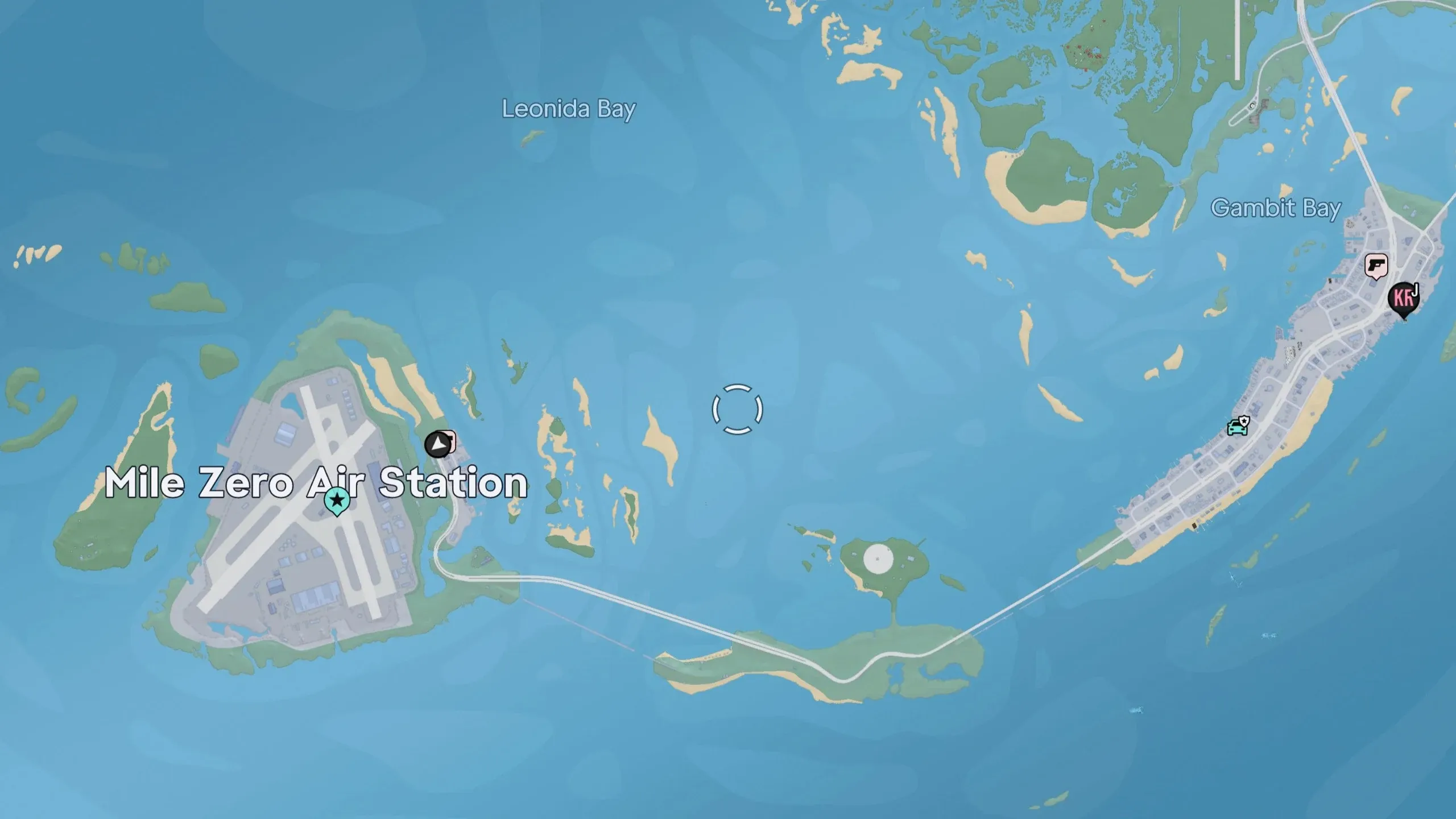


To let a car or boat drive itself in GTA 6, place a destination marker on the map, get moving, then open Cinematic Camera and hold Circle on PS5 or B on Xbox when the Auto Drive prompt appears. The driver takes the route to your marker, so you can watch the scenery instead of steering. It's most useful on long trips across Leonida, the game's large open region of counties, cities and islands.
| Action | PS5 | Xbox |
|---|---|---|
| Open Cinematic Camera | Hold Down on the D-pad, then press Options | Hold Down on the D-pad, then press Menu |
| Start or stop Auto Drive | Hold Circle | Hold B |
| Speed up | R2 | RT |
| Slow down | L2 | LT |
What You Need Before Auto Drive Works
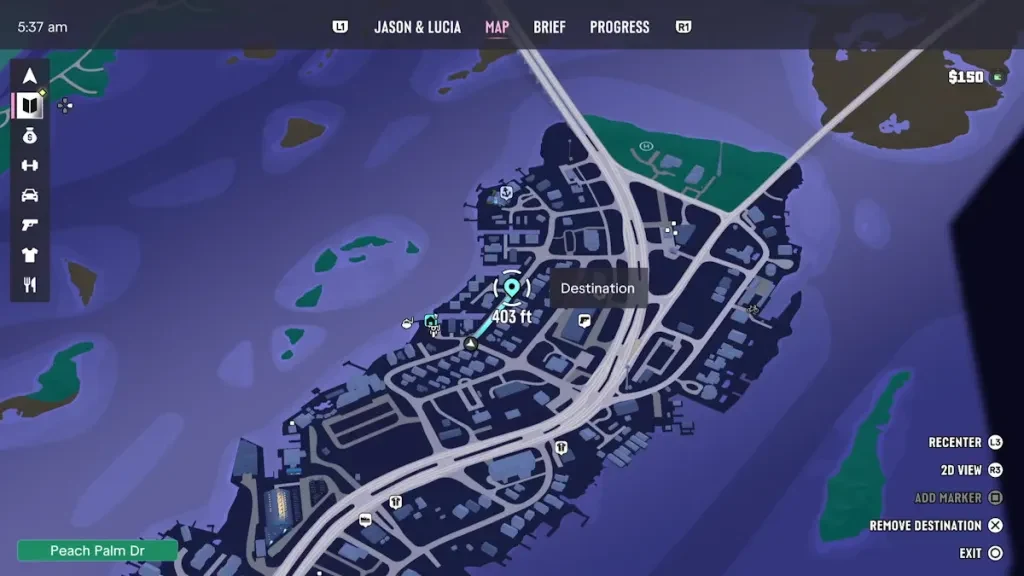
Auto Drive needs two things: a destination and a vehicle. The destination is a marker you place on the interactive map before you start, because the driver only heads for a point you've already set. Without a marker, the prompt won't appear.
Any vehicle that drives on land or floats on water can use it. Aircraft are the exception. If you want a different ride first, the special vehicles and where to find them page is worth a look.
How to Turn On Auto Drive in GTA 6
- Place a destination marker on the map.
- Get into a car or boat and start moving.
- Hold Down on the D-pad, then press Options (PS5) or Menu (Xbox) to open Cinematic Camera.
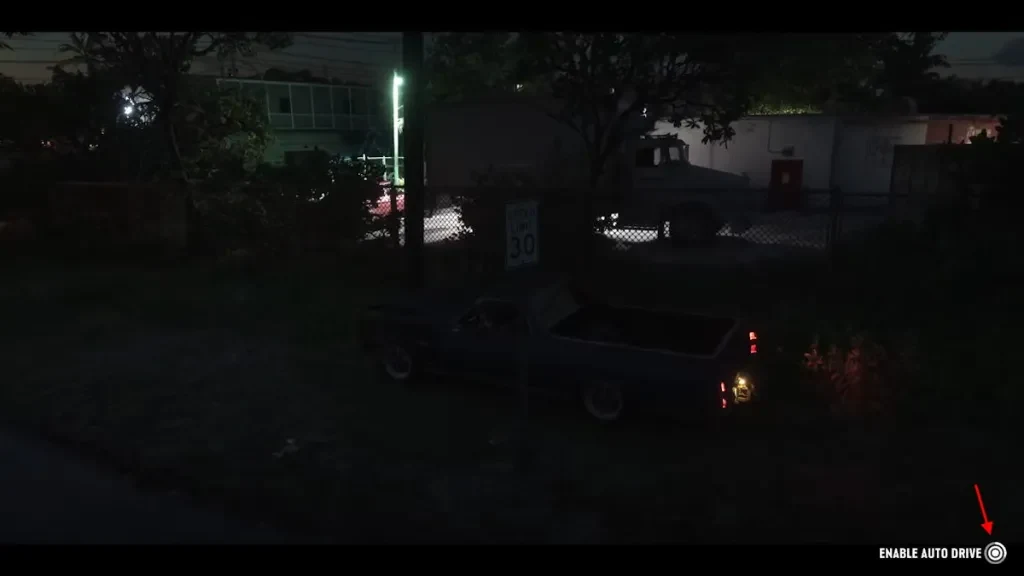
- When the Auto Drive prompt appears, hold Circle (PS5) or B (Xbox) to start it.
Holding Down on the D-pad brings up the camera options in the lower right corner, and the Auto Drive prompt appears in the same area. Auto Drive only starts from Cinematic Camera, so that step can't be skipped. If the prompt doesn't show up, check that Cinematic Camera is active and that a destination is set on the map.
How the Auto Drive Ride Plays Out
Once Auto Drive starts, the driver follows the route, obeys traffic rules and stops at red lights. It also avoids reckless driving.
Expect a slower trip than driving yourself. The route can be more scenic than the direct one, and you can end up stuck in a traffic jam or held up by a road accident. Auto Drive suits relaxed trips where you want to look around, not trips where you're in a hurry.
While it runs, use the triggers to change speed, with three driving speeds to choose from. You can change the destination marker at any time to reroute, and holding the same button again stops the driver. The camera also changes as the car drives, cutting between side angles, overhead shots and front-facing views of the road. Move it with the right stick, and click R3 (PS5) or RS (Xbox) to jump to the next view.
Restricted vs Unrestricted Auto Drive Settings
Auto Drive has two settings, found under Settings → Gameplay → Auto Drive. It starts on Restricted, which only works on roads. If you leave the road, such as heading onto a beach, the prompt disappears.
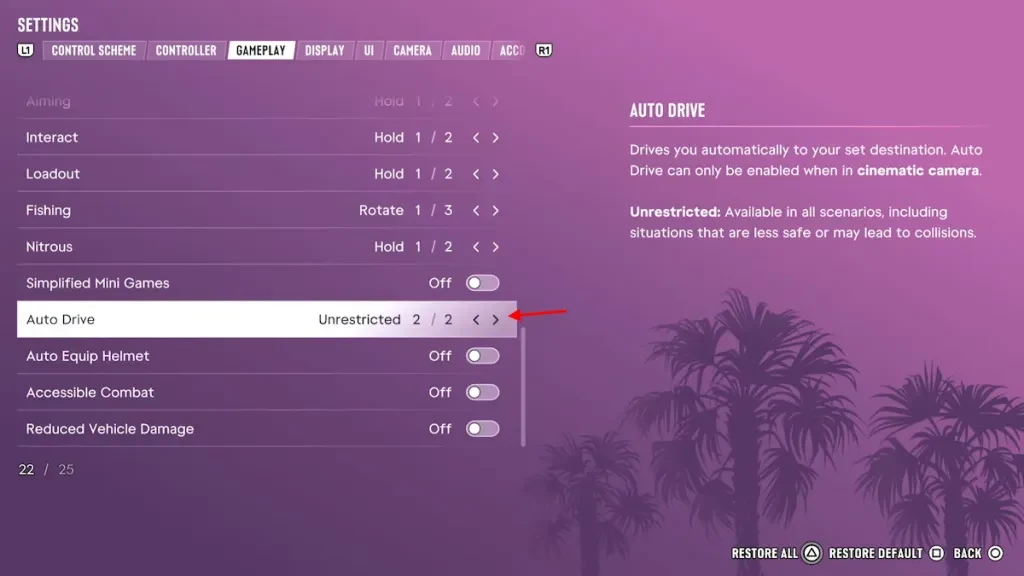
Restricted is all you need for everyday road driving, so there's no reason to change it for normal trips. Unrestricted widens where Auto Drive can activate, including off-road routes, but it also allows less-safe situations that can lead to collisions. In practice, the car can crash into trees, bushes or animals on its way.
Switching to Unrestricted doesn't remove the Cinematic Camera step, so you still open the camera and hold the button.
Auto Drive on Boats and in Aircraft
Boats can use Auto Drive as well. They follow water routes, so a marker out on a lake or the ocean is the kind of trip they handle. If you set a marker on land, the boat travels as far as the water allows, then Auto Drive stops on its own. If you're new to boats, how to get a boat and drive it covers the PS5 and Xbox controls.
Planes and helicopters are the exception. Auto Drive doesn't work in aircraft, so you'll need to fly them yourself, and how to fly a plane covers the controls, takeoff and landing.